

Comments on a Public Portfolio
A public portfolio page can host a discussion: readers ask questions, the author answers, and the conversation forms threads. This article covers how to turn the chat on, how to write and format comments, and which rules apply to comment authors, page owners and moderation.
- Turning it on: the “Enable chat (comments)” checkbox in the public page builder — it is already checked for a new page.
- Who can post: only users logged in to Firewire; anyone who can open the page can read.
- Rules: up to 2,500 characters; you can edit your own comment for 15 minutes and until the page owner has read it; the author or the page owner can delete it.
- Conveniences: reply threads, Markdown with preview, likes, reports, bookmarks and an auto-saved draft.
1. How to turn comments on
Comments are configured in the public page builder (see Public Portfolio Page Builder for how to open it).
- In the “Privacy & Access” block, find the “Enable chat (comments)” checkbox. It is on by default for a new page.
- In the same block you can limit the audience: “Show only to registered users” and “Show only to community members” (the latter becomes available once a community is selected for publishing).
- Save the page. The “Comments” section appears below the widgets.
If you clear the checkbox, the section disappears from the page and the server stops accepting new comments for it. Other access settings are described in Sharing.
2. Who can read and write
- Reading is open to anyone who can access the page itself.
- Writing, liking and reporting require logging in to Firewire. A guest sees “Log in to leave comments”.
- With “Show only to registered users” on, comments are available only to logged-in users. With “Show only to community members” — only to community members and the page owner.
3. Reply threads, likes and bookmarks
Above the list are the “Comments” heading with the message count and the “Chat width:” switch — S, M, L or XL. Each comment has buttons:
- “Reply” — opens a “Reply to …” field. Replies line up in indented threads; the number next to the arrow is the reply count.
- “Like” — a heart with the like count; clicking again removes your like.
- “Add bookmark” — the anchor. Give the label a name (the start of the text by default), and the bookmark appears in the “Your bookmarks (click to open):” block above the list: a click scrolls to the message and highlights it.
- “Report” — the flag. Enter a reason, and the comment goes to Firewire moderators for review.
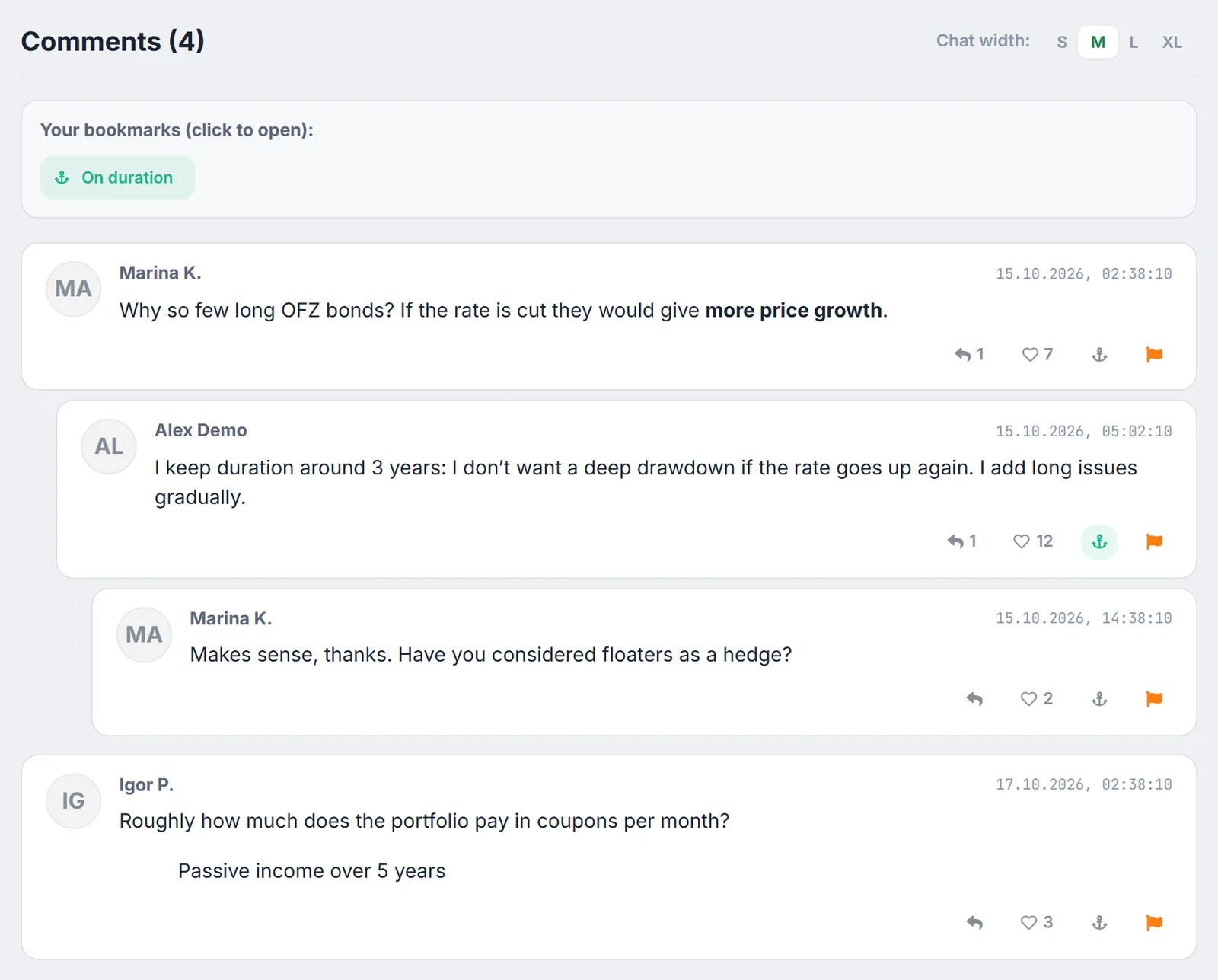
If you open the page via a link ending in #comment- plus a comment number, the page scrolls to that message on its own and highlights it for a few seconds.
4. How to write a comment
- Scroll down to the “Leave a comment” block.
- Type your text. The toolbar above the field inserts Markdown: “Bold”, “Italic”, “Strikethrough”, “Code”, “Quote”, “Link”, “List”, “Numbered list”; there is also an “Insert emoji” button.
- The eye button is “Preview”: it shows how the comment will look once published.
- The counter on the right shows characters used: no more than 2,500.
- Click “Post comment”.
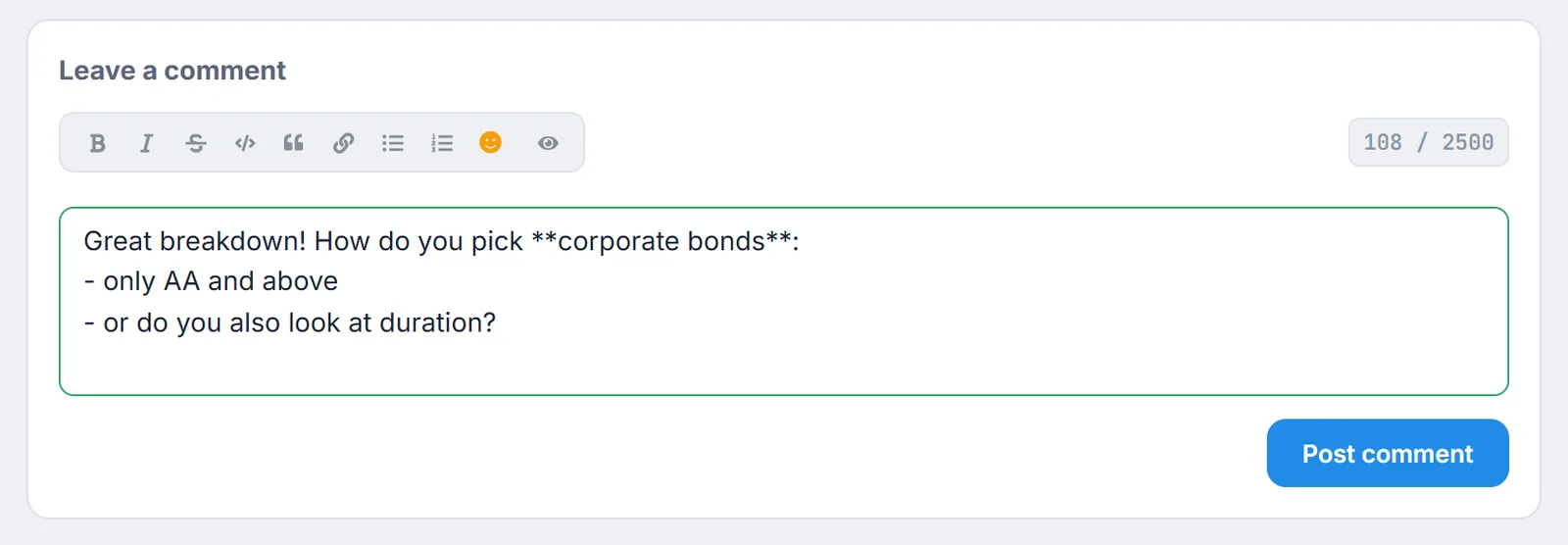
A draft of a new comment is saved in the browser separately for each page: if you close the tab by accident, the text comes back the next time you open it.
5. Editing, deleting and moderation
| Action | Who | Conditions |
|---|---|---|
| Edit | Only the comment author | Within 15 minutes of posting and until the page owner has opened the comments |
| Delete | The comment author or the page owner | After confirmation the comment disappears from the page |
| Restore | Only a Firewire administrator | A comment deleted by its author or the page owner cannot be brought back by them |
Every comment is checked against moderation rules. If the text breaks a blocking rule, it won't be published and you'll see an error that the message contains prohibited content. If a rule is only a warning, the comment is published and you'll see a moderation warning with the reason.
6. Notifications about new comments
The page owner gets a “New comment” notification about messages on their portfolio, and a comment author is notified when someone replies to them. Notifications for one page are collected into a single entry that updates as new messages arrive. If the page is published in a community, notifications follow your participation settings there (see Joining Investor Communities). Where to find them — in Notification Center.
7. Caveats
- Bookmarks and chat width are stored in the browser. They won't be on another device.
- No comments in embedded mode. When a portfolio is embedded on a website or in Notion, the comments section is not shown (see Embedding).
- Indentation depth is limited. Replies deep in a thread are shown without additional indentation.
- Some messages are Russian-only. Moderation notices and the report and bookmark dialogs are currently shown in Russian even in the English interface.
8. Frequently Asked Questions (FAQ)
Why did the “Edit” button disappear?
You can edit only your own comment and only for 15 minutes after posting. Editing also closes as soon as the page owner opens the comments, so an author cannot quietly change text that has already been read. You can delete the comment and write it again.
As the owner, can I delete someone else's comment?
Yes, the page owner can delete any comment under their portfolio. Editing other people's comments is not possible. If a message breaks the rules, click “Report” — Firewire moderation will review it.
Can others see my bookmarks?
No. Bookmarks are stored only in your browser and visible only to you. If you clear site data or switch devices, they won't be there.
How do I close the discussion without deleting the page?
Clear “Enable chat (comments)” in the builder and save the page. The comments section disappears and new messages are no longer accepted.