

Notification Center: Every Portfolio Event in One List
The Notification Center is Firewire's inbox: expected coupon and dividend payouts, credit rating changes, free cash alerts and replies from support all land here. You can search notifications, filter them by type, mark them as read, move them to the archive and delete what you no longer need.
- Two tabs: "Active" and "Archive", each with a counter.
- Search and filters: a search box for titles and text, plus "All", "Payouts", "Sync Errors", "Support" and "Ratings" filters.
- Bulk actions: "Mark all as read", "Archive all" and, in the archive, "Clear archive".
- Jump to the source: clicking a notification opens the security page or your support ticket.
1. Why a notification center
The Telegram bot and emails are great for not missing an event, but they are easy to scroll past. The Notification Center keeps events inside the app: you can return to a coupon expected last week, find a support reply or check when an issuer's rating changed. Telegram setup is described separately in Telegram bot and alerts.
2. Where to find it
- The "Notifications Center" item in the left menu (address
/notifications). The page is titled "Notification Center (Inbox)". - The bell in the app header shows the latest notifications, and the link at the bottom of the panel leads to the same page.
3. The Active and Archive tabs
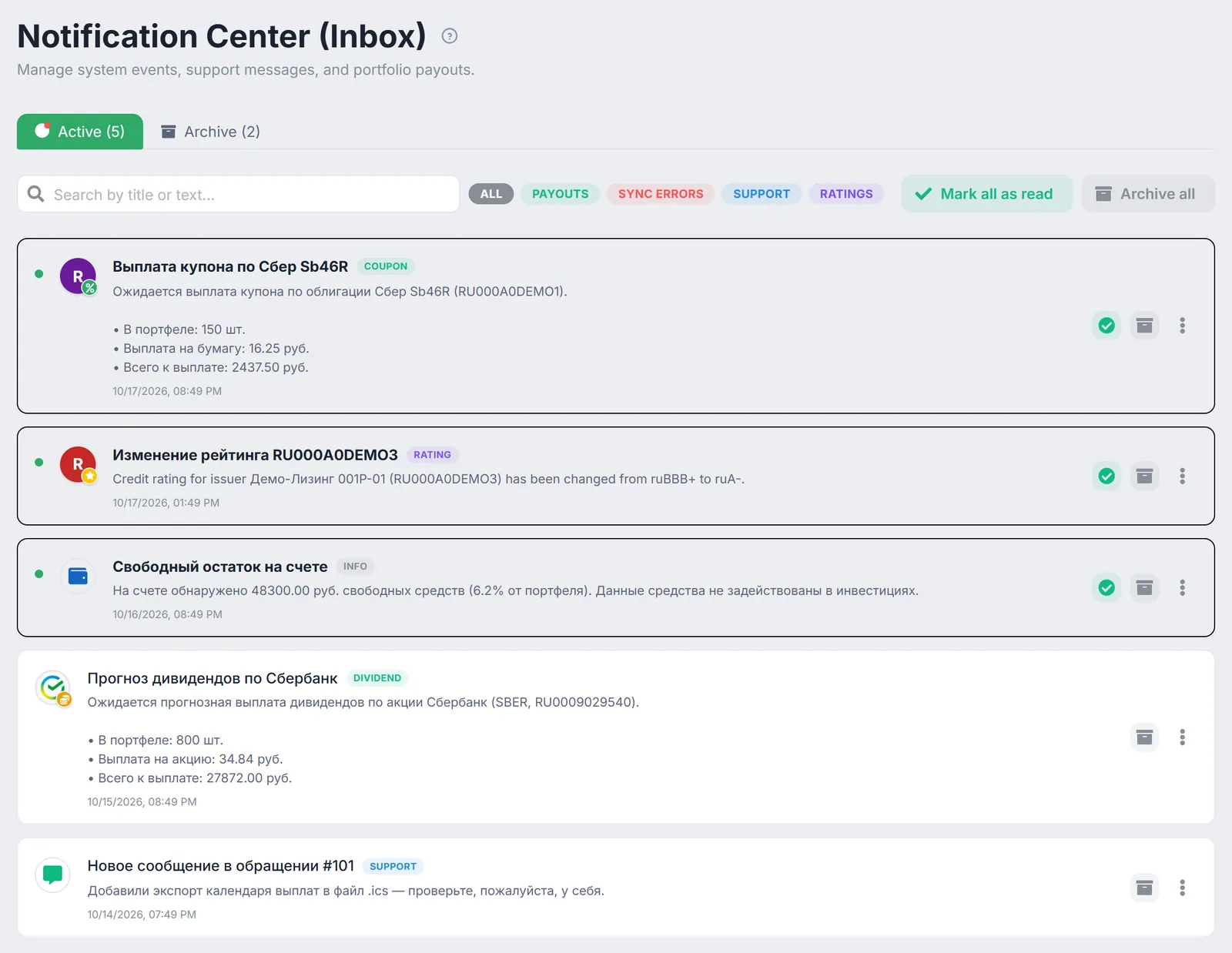
"Active" holds current notifications, "Archive" holds the ones you have put away. The number in brackets is the count for each tab, and a red dot on "Active" means there are unread items. An unread notification has a highlighted border, a green dot on the left and a bold title.
Each page shows 10 cards, with page navigation below. Each tab loads your 50 most recent notifications.
4. Search and filters
The "Search by title or text..." box searches notification titles and text — for example, by ticker, ISIN or security name. Next to it are type filters:
| Filter | What it shows | Card label |
|---|---|---|
| "All" | All notifications in the tab | — |
| "Payouts" | Expected coupon and dividend payouts, including forecasted ones | "Coupon", "Dividend" |
| "Sync Errors" | Errors syncing with a broker | "Sync Error" |
| "Support" | Replies from support to your tickets | "Support" |
| "Ratings" | Credit rating changes for issuers in your portfolio | "Rating" |
Free cash notifications are labelled "Info" and appear only under "All". How rating and free cash alerts are generated is explained in automatic alerts.
5. Actions on a notification
- Clicking a card marks it as read and opens the source: a bond page for a coupon, a stock page for a dividend, or your ticket under Settings → Support for a support reply.
- The "Mark as read" check clears the highlight without navigating anywhere.
- The "Archive" button moves the notification to the archive.
- The "⋮" menu has extra actions: "Open support ticket" for support replies, "Fix BCS settings" for sync errors, and an archive command.
Identical notifications (same type, security, title and text) are shown as a single card, and any action applies to all of them. Several replies to one support ticket are also grouped into one card such as "Ticket #101 (3 messages)".
6. Bulk actions
- "Mark all as read" — appears when there are unread notifications and clears their "new" status.
- "Archive all" — moves every active notification to the archive.
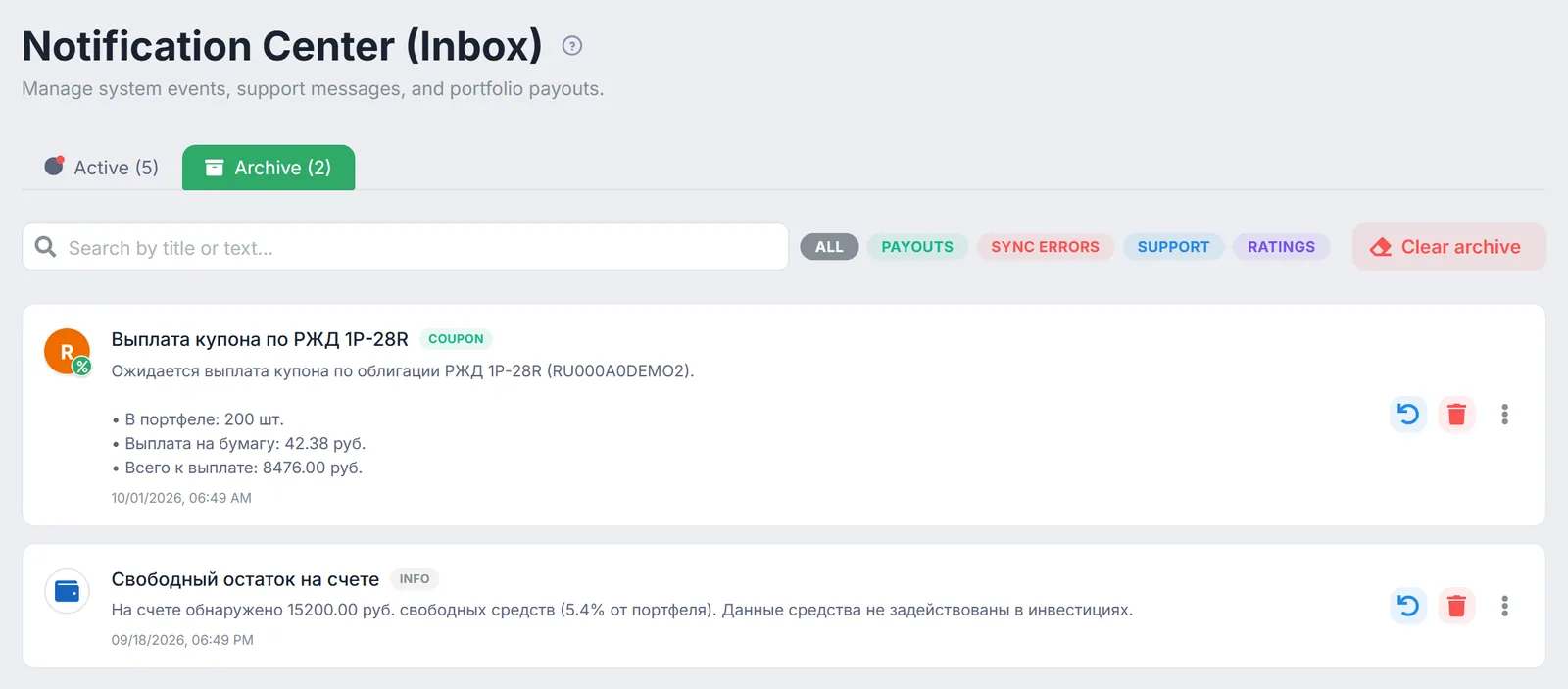
- "Clear archive" — in the Archive tab: deletes all archived notifications. This cannot be undone.
7. Archive and restore
In the archive, each card has two buttons: restore returns the notification to the Active tab, and "Delete permanently" removes it from the list for good. The "⋮" menu in the archive offers the same deletion.
8. Other places notifications are delivered
The "Notification settings" button in the top right corner takes you to Settings. Delivery channels are set in the "Notifications & Telegram" block on the "Connections & Main" tab: once Telegram is linked, a "Notification channels" table appears there with "In-app", "TG", "Email" and "Push" columns for each event type. See how to link the Telegram bot and delivery channels for automatic alerts.
9. Caveats
- Payout, rating and free cash notifications are not created for hidden accounts or the demo portfolio.
- Notification titles and text are generated in Russian. In the English interface, only the rating change text is translated.
- Payout notifications are about expected payouts on securities in your portfolio. Forecasted payouts say "Прогноз" (forecast) in the title.
10. Frequently Asked Questions (FAQ)
What is the difference between archiving and "Delete permanently"?
An archived notification can be restored to the Active tab. A deleted one cannot. Deletion is only available in the Archive tab, so you cannot accidentally erase an active notification.
Why do free cash notifications not show up under the filters?
They have the "Info" type, which has no dedicated filter. They appear under "All" — you can also find them by searching for the word "остаток".
Where does clicking a coupon notification take me?
To the bond page with your trades, coupons and chart — see bond analysis. All upcoming payouts are in the payout calendar.
Can I get the same notifications in Telegram?
Yes. Link the bot in the "Notifications & Telegram" block and tick the "TG" column for the events you need in the "Notification channels" table. See Telegram bot and alerts.