

Public Portfolio Page Builder
A public page in Firewire is more than a link to your portfolio — it is the author's own Bento page with tabs, a banner, strategy tags, contacts, a QR code and a design of your choice. How to create a link, hide amounts and revoke access is covered in Sharing and Public Access. This guide covers everything you can set up in the builder to turn the page into a showcase of your strategy.
- Where: "Settings" → "Communities & Access" → "+ Create Link".
- Two languages: the title, description, tags and tabs can be filled in Russian and in English.
- Header: performance stats, up to 5 strategy tags, community avatars, a QR code, a banner with a link.
- Caveats: templates are stored only in this browser, a custom page address is for verified authors only, the "Broker Cabinet" and "Flat" designs require a paid plan.
1. How to open the builder
- Open "Settings" → the "Communities & Access" tab.
- Click "+ Create Link" — the "Bento Page Builder" opens. An existing page can be opened in the same builder for editing.
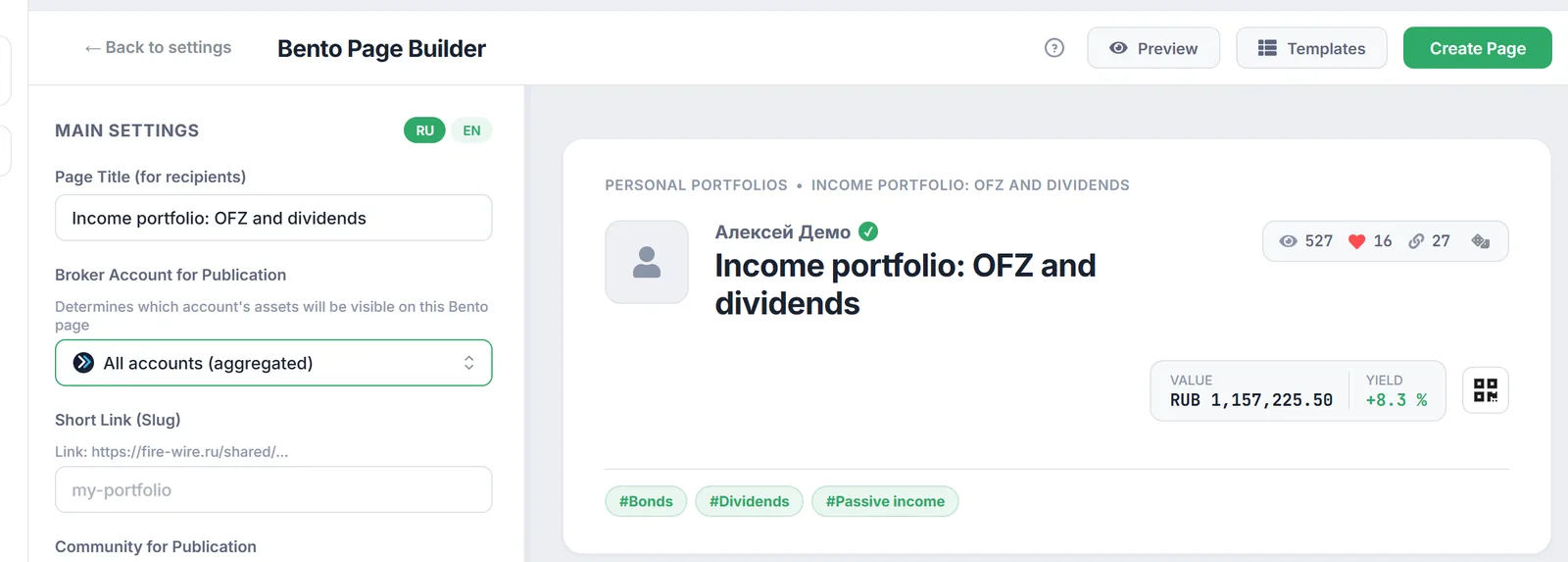
- The settings panel is on the left, a live preview of the page on the right. "Preview" shows the page as a visitor sees it, "Templates" opens saved templates, "Create Page" (for an existing page — "Save Changes") publishes the result.
The number of pages depends on your plan: 1 on Free, up to 3 on Starter, up to 10 on Investor, unlimited on Expert.
2. Main settings and design
- RU / EN. The language switch in the "Main Settings" block. The title, description, tags and tab names are filled separately for each language — foreign readers see the English version.
- "Page Title (for recipients)" and "Broker Account for Publication" — which account the page shows.
- "Short Link (Slug)" — a readable address like
fire-wire.ru/shared/my-portfolio. The field is available to verified authors only; other pages get a random address that cannot be guessed. - "Community for Publication" — "Personal Portfolio (outside community)" or one of the communities you are a member of (see Community Membership).
- "Visual design of public page" — "Standard" is available to everyone, "Broker Cabinet" and "Flat (Minimalism)" — on any paid plan and during the trial. The server checks the plan when you save. If your subscription ends, visitors see the standard design, while your choice is kept and comes back after renewal.
- "Page Description (Markdown)" — up to 1,000 characters with a formatting toolbar and a "Line color for description". The "Hide exact amounts in RUB" switch is here too — see the anonymity section.
3. Widgets and tabs
The "Available widgets" block is a searchable catalog: click "+" and the widget appears in the preview. Each card in the preview has width and height switches and a remove button. You can also add the note and asset widgets — for example, to describe your strategy right inside the grid.
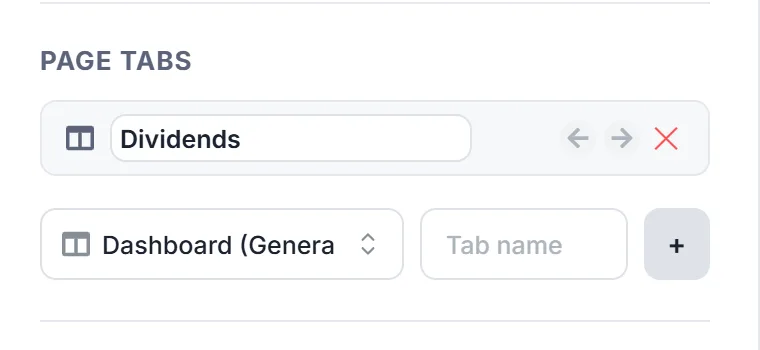
To split a long page into sections, use "Page Tabs":
- Pick a preset icon — Dashboard (General), Assets, Metrics, Performance, Dividends, Cash, Diversification, Taxes, Growth, Mortgage, Calendar.
- Enter the "Tab name" and click "+".
- A tab name can be set separately for the Russian and English versions; tabs can be moved left and right and deleted.
New widgets go to the active tab. Without tabs, all widgets are shown in a single Bento grid.
4. Header: banner, tags, QR code and contacts
- "Public portfolio banner". Upload a PNG or JPG of up to 5 MB with a 4:1 aspect ratio. Drag the banner in the preview to position it and use the mouse wheel to zoom. After the upload, a "Link on banner click" field appears: set where the reader goes, for example your Telegram channel. If the page is published in a community, you can turn on "Use community banner".
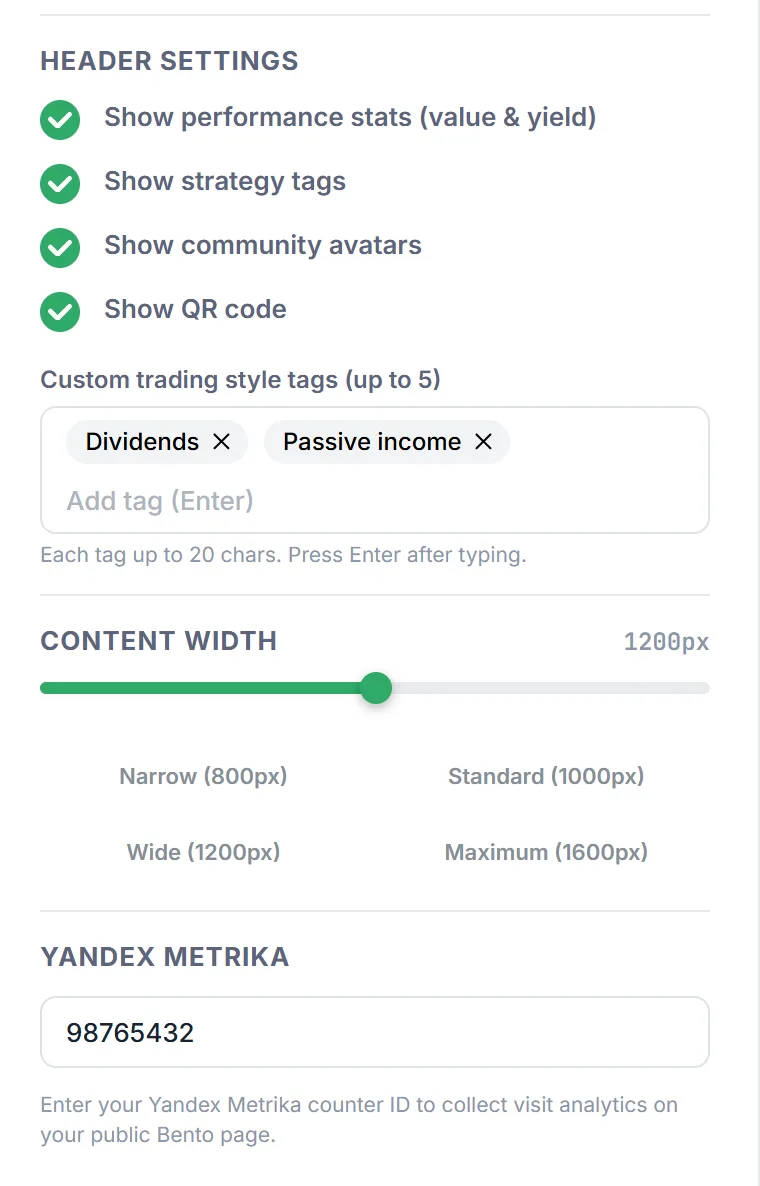
- "Header Settings" — the "Show performance stats (value & yield)", "Show strategy tags", "Show community avatars" and "Show QR code" switches. The QR code opens from a button in the header — handy for slides and offline meetups.
- "Custom trading style tags (up to 5)" — up to 20 characters each, confirm each tag with Enter: for example, "Bonds", "Dividends", "Passive income".
- "Contacts & Socials" — links to Telegram, a website, Twitter / X, YouTube, GitHub or any other resource with your own title. Links can be reordered. There is a separate "Show my email in contacts" switch.
The author's name and avatar in the header come from your profile: "Settings" → "Connections & Main" → "Author Profile". There you set the "Author Name / Alias" and the "Author Avatar" — the image can be cropped and zoomed before saving.
5. Page width and your own Yandex Metrika
- "Content Width" — a slider from 800 to 1,600 px in steps of 50 with quick options "Narrow (800px)", "Standard (1000px)", "Wide (1200px)", "Maximum (1600px)".
- "Yandex Metrika" — enter your counter ID (6 to 10 digits) to see the page's traffic in your own Metrika account.
Your counter loads only for anonymous visitors — those not signed in to Firewire — and only if the visitor has accepted analytics cookies. Session Replay and the click map are not enabled for it. Signed-in Firewire users are not counted in your statistics: this keeps their account data away from a third-party script.
6. Page templates
The "Templates" button in the top bar opens the "Bento Page Templates" window. "Save current layout as a new template" stores almost the whole setup: widgets and tabs, banner, tags, contacts, header and privacy settings, width and the Metrika counter. A saved template can be applied to a new page, overwritten with the current settings or deleted.
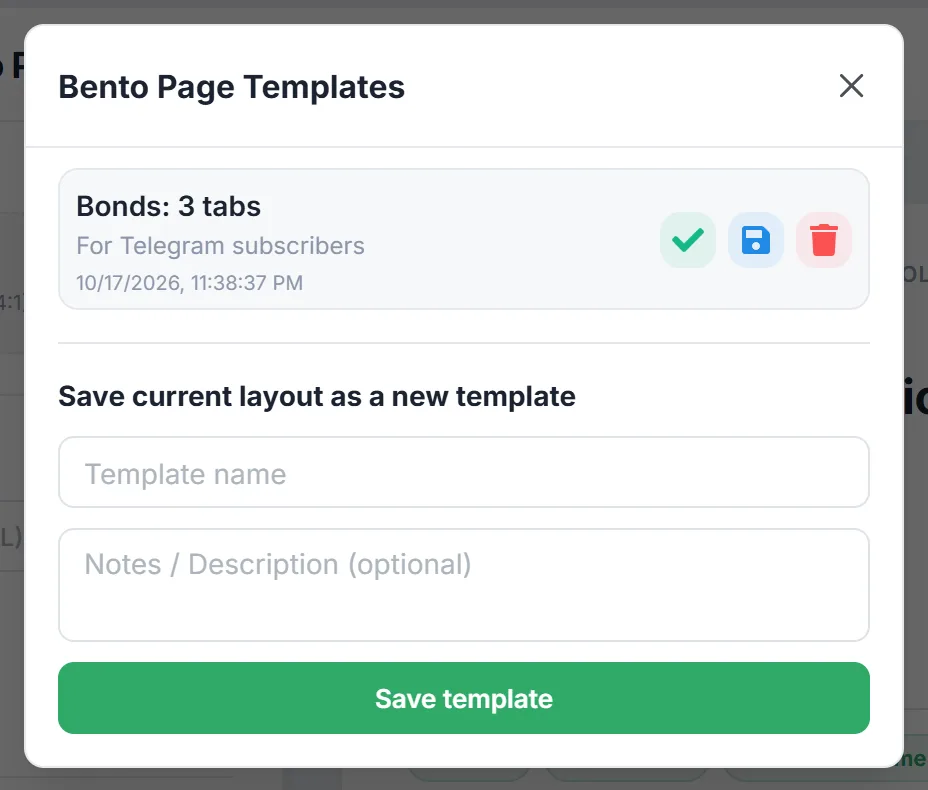
Important: templates are stored only in this browser's storage. They will not be there on another computer, in another browser or after clearing site data. The page design is not part of a template — choose it again.
7. Frequently asked questions (FAQ)
Why is the "Short Link (Slug)" field disabled?
Only verified authors can set their own page address. Other pages get a random address that cannot be guessed by brute force.
Why does my Metrika show fewer visits than Firewire's view count?
The author's counter loads only for visitors who are not signed in to Firewire and have accepted analytics cookies. Other views do not reach your Metrika.
Where did my templates go?
Templates live in the browser's storage. If you opened the builder on another device, in another browser or cleared site data, your saved templates are not there.
What will visitors see if my subscription ends?
The page keeps working, but a paid design switches to the standard one. Your choice is kept and comes back after you renew.