

Embedding Portfolios and Calculators on Websites and in Notion
A public Firewire portfolio and the Firewire calculators can be shown not only as a link but right inside your own page: in a blog, on a website, in Notion or in a Medium article. The embedded block updates together with the portfolio data — no need to copy numbers by hand.
- Portfolio: public page → “Share” → the “Embed widget” tab.
- What to embed: the “Entire portfolio” or selected widgets, in a dark or light theme.
- Where: the “HTML <iframe>” code for a website, the “Link for Notion” for Notion and Medium.
- Calculators: the “Embed” button on a calculator page, with a language choice and the option to keep your input values.
1. Why embed
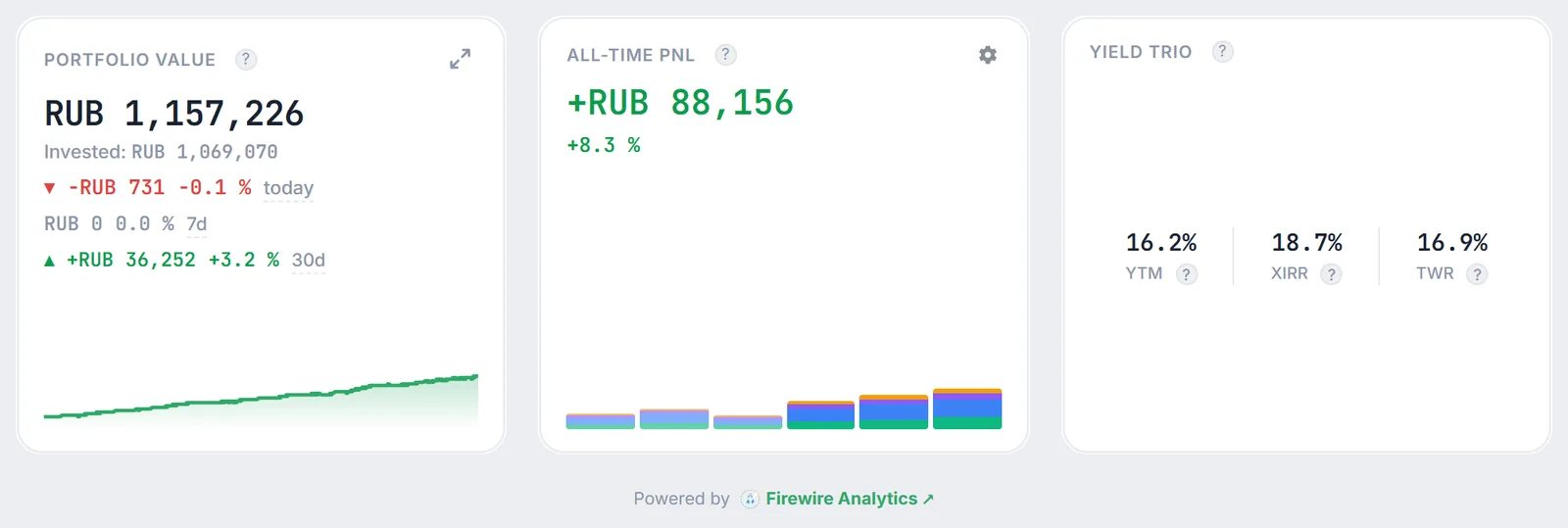
If you run an investing blog or channel, readers find it easier to see the portfolio right in the text than to follow a link. The embedded block shows the same widgets as the public page and updates with it. You can embed the whole page or just a couple of cards — for example, “Portfolio Value” and “All-Time P&L” under a monthly report.
Only a public page can be embedded. How to create and design one is covered in Sharing and Public Portfolio Page Builder.
2. How to embed a public portfolio
- Open the public portfolio page and click “Share” in the header. The same button is on portfolio cards in communities.
- Switch to the “Embed widget” tab.
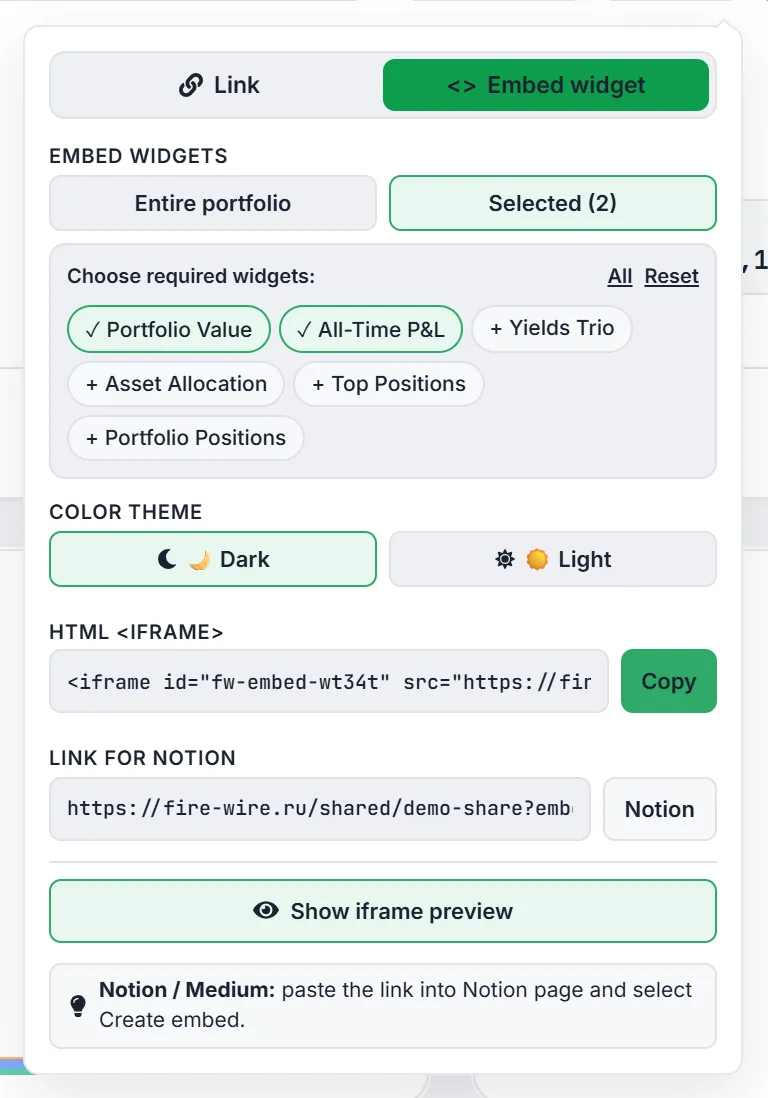
- Under “Embed widgets”, choose “Entire portfolio” or “Select widgets”. In the second case, tick the cards you need under “Choose required widgets:” — the button will show “Selected (N)”. The “All” and “Reset” links select or clear everything at once.
- Under “Color theme”, pick “Dark” (the default) or “Light” to match your site.
- Copy the code from the “HTML <iframe>” field with “Copy”, or the link from the “Link for Notion” field with the “Notion” button.
- To check the result before publishing, click “Show iframe preview”.
3. Adding it to a website: the iframe code
Paste the code from the “HTML <iframe>” field into an HTML block of your site or site builder. The initial frame height depends on your choice: 550 pixels for the whole portfolio, 380 for one widget (220 for a single-metric card), 420 for two or three. A short script is copied along with the frame: the embedded page reports its size to it, and it fits the frame height to the content so no scroll bar appears inside.
In embedded mode Firewire shows only the widgets. When the whole portfolio is embedded, the page title and a “Firewire Analytics ↗” link sit on top, and a “Powered by Firewire Analytics ↗” caption at the bottom opens the full page in a new tab. Comments and management buttons are not shown in the frame.
4. Embedding in Notion and Medium
- Click the “Notion” button next to the “Link for Notion” field — the link is copied.
- In Notion, paste it on a page and choose Create embed — the Share window gives the same hint. In Medium, paste the link into the article text.
The link already contains the embedding settings: the selected widgets and the theme. If you are logged in to Firewire and have a referral code, it is added to the link too (see the referral program guide).
5. Embedding calculators
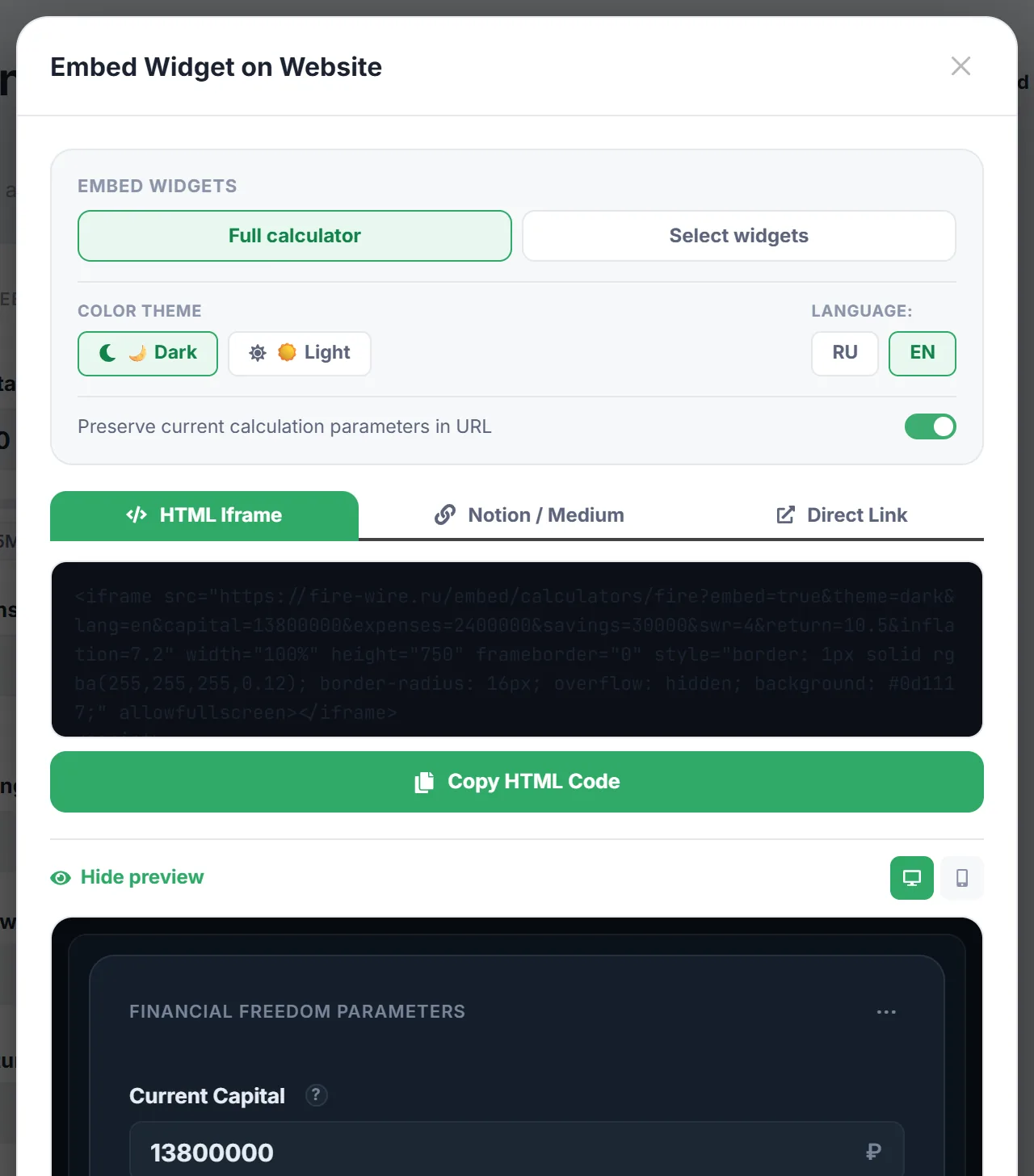
The “Financial Freedom”, “Compound Interest”, “Capital Forecast” and “IIS Tax Calculator” calculators are embedded separately — with the “Embed” button at the top of the calculator page. The “Embed Widget on Website” window offers:
- “Full calculator” or “Select widgets” — for example, only the result. A single widget can also be embedded from its “…” menu → “Embed widget </>”;
- “Color theme” and “Language:” RU or EN;
- the “Preserve current calculation parameters in URL” switch (on by default): your numbers go into the link, and readers see the calculation with exactly those values;
- the “HTML Iframe”, “Notion / Medium” and “Direct Link” tabs with copy buttons, and a preview that switches between desktop and phone.
An embedded calculator works for visitors without a Firewire account and is captioned “Powered by Firewire Analytics”. How the calculations work is described in Financial Freedom, Monte Carlo and IIS Tax Benefits.
6. Limitations and security
- Only open pages can be embedded. Frames on other websites may show only public portfolio pages and calculators. If you navigate to a private section inside the frame, Firewire shows “This page cannot be opened in an embedded frame.” and an “Open in a new tab” link.
- Access restrictions apply in the frame too. If the page has “Show only to registered users” or “Show only to community members” on, a visitor who is not logged in to Firewire will see “Access Restricted” in the frame instead of the portfolio. Use a page without these restrictions for embedding.
- Hidden amounts stay hidden. The frame shows the same data as the public page: if exact ruble amounts are hidden there, they won't appear in the embedded block either (see privacy settings).
- Delete the page — the block stops working. The frame shows the live page, so once you revoke access it will no longer show the portfolio.
7. Frequently Asked Questions (FAQ)
Do I need to update the code after new trades?
No. The frame shows the live public page, so new trades and payouts appear in the embedded block by themselves. Take the code again only if you want a different set of widgets or another theme.
Can I embed someone else's public portfolio?
The “Share” button is available on any public page, so technically yes. But the owner can change or close the page at any time, and the embedded block will change with it.
Why does the Notion block show “Access Restricted”?
Most likely the page has an access restriction: “Show only to registered users” or “Show only to community members”. Remove it in the builder or embed another, open page.
What happens if I turn off “Preserve current calculation parameters in URL”?
Your values are not added to the link, and the embedded calculator opens with its default parameters. The theme and language are kept.