

Note Widget, Divider and Asset Widget
Among the dashboard widgets there are customizable layout elements that you shape to match your investment structure. The "Custom Note" is a Markdown text card (buying plans, rebalancing rules). The "Divider" is a visual line with or without text for zoning analytic blocks. The "Asset Card" shows one security from your portfolio with the metrics you pick (price, P&L, YTM, duration, next payout).
- Where: dashboard → "Configure" → "Add widget" → "Custom Note", "Divider" or "Asset Card".
- How many: these widgets can be added several times — each copy keeps its own settings.
- Note: Markdown, color and visibility of the accent line on the left, icon, font size, line spacing, background and text color.
- Divider: horizontal or vertical, 5 line styles (solid, dashed, dotted, double, gradient), default primary accent, optional label and transparent background.
- Asset: one security from your portfolio and up to seven metrics to choose from; duration is for bonds only.
1. How to add the widget to a dashboard
- Open the dashboard and click "Configure" in the top right corner — edit mode turns on.
- Click "Add widget" and pick "Custom Note", "Divider" or "Asset Card" in the catalog.
- Drag the card where you want it and choose its width and height, like any other widget (see Bento Grid Dashboard). Both widgets support all four heights: 1/4, 1/2, 3/4 and 1/1.
- Click "Ready". The layout is saved for the current dashboard — to set up several screens, see Multiple Dashboards.
Regular widgets can be placed on a dashboard only once, but these customizable widgets as many times as you like: for example, one card per bond of your ladder, dividers between categories, or separate notes for different strategy rules.
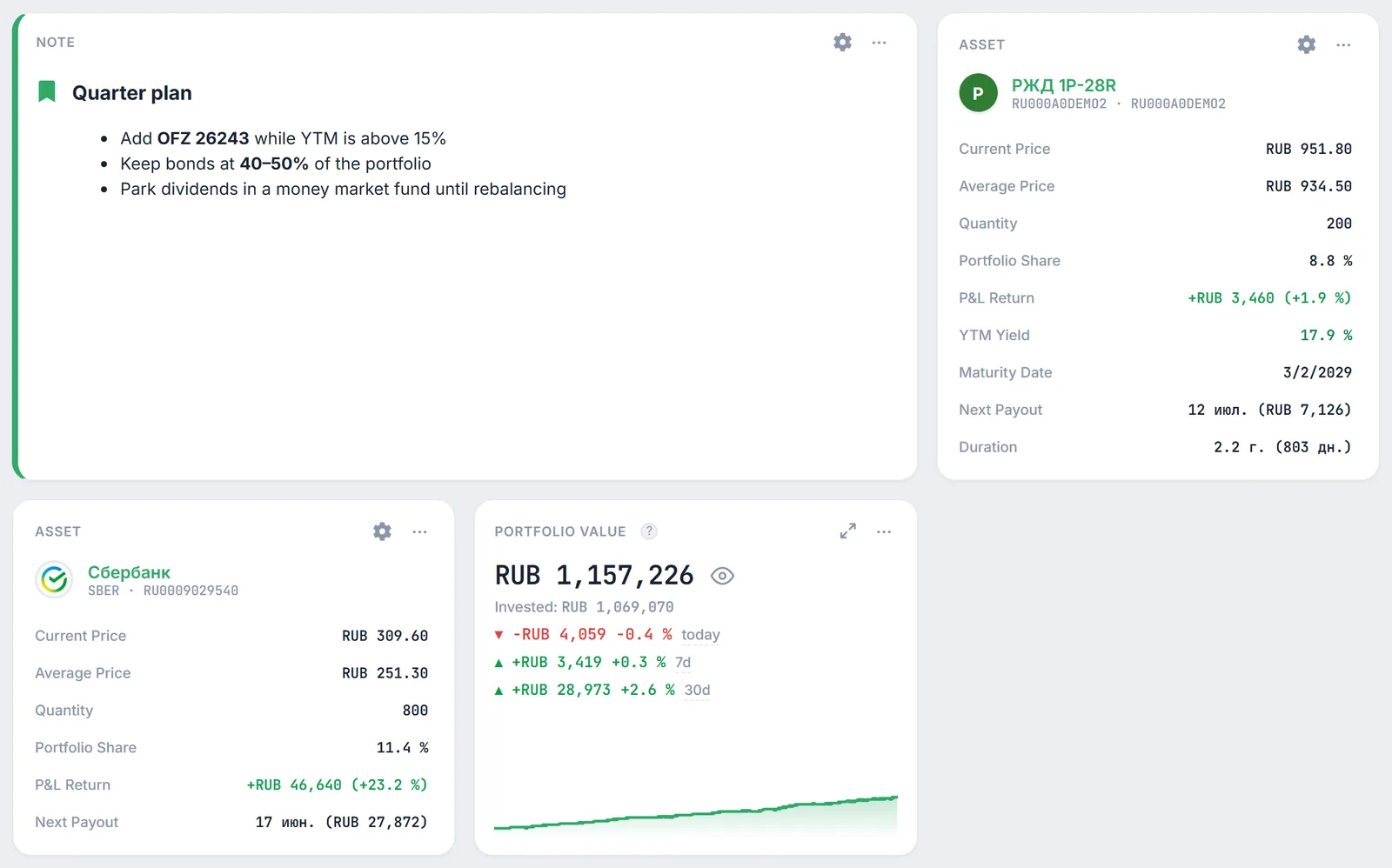
2. Custom Note: a Markdown card
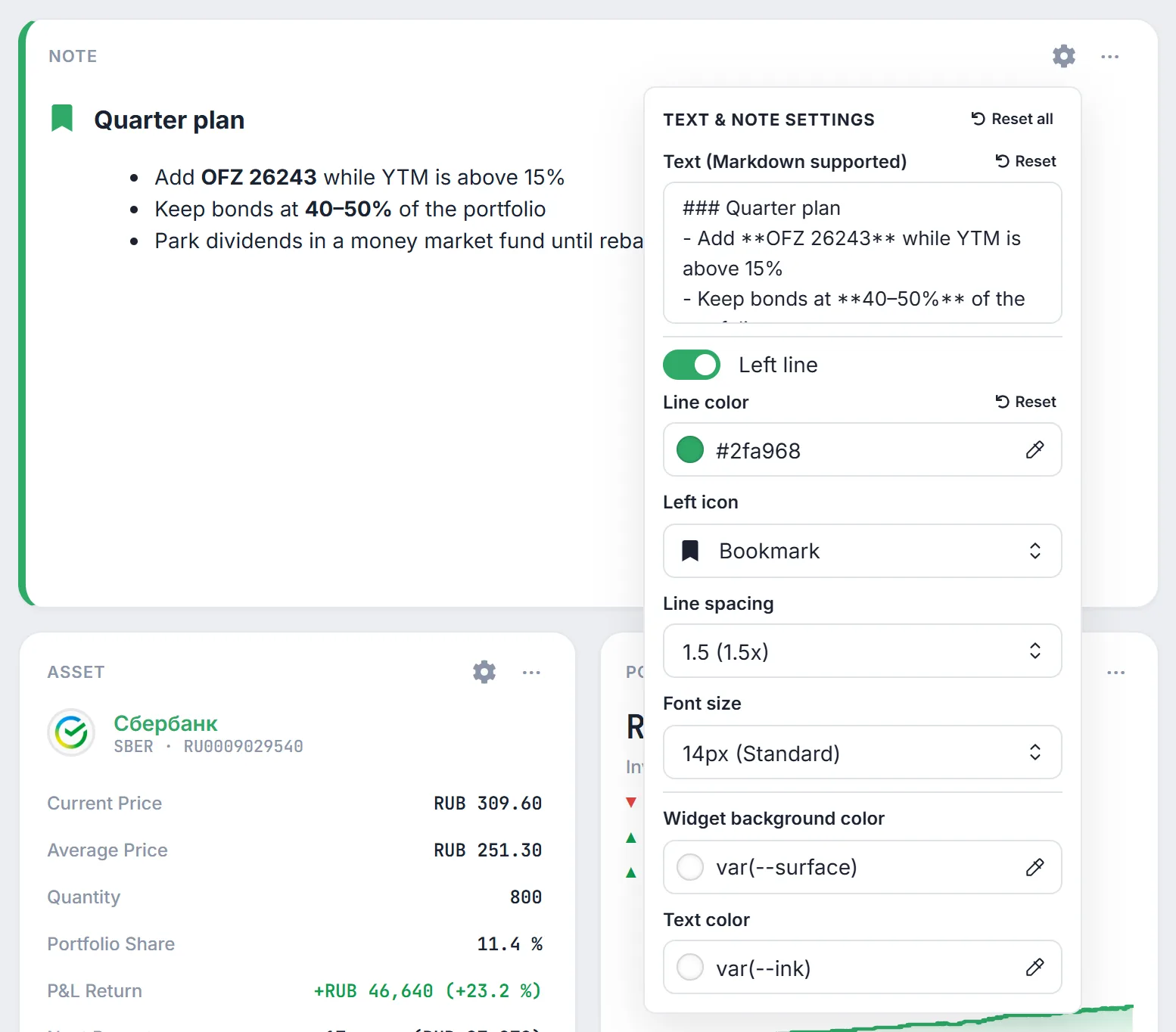
On the dashboard the widget is labelled "Note". To change it, click the "Configure note" gear in the card header — it is available outside edit mode too. The "Text & Note Settings" menu contains:
- "Text (Markdown supported)" — headings (
###), lists, bold and italic, links and tables. Changes appear on the card immediately. - "Left line" turns the accent stripe along the left edge on or off, "Line color" sets its color: a preset swatch or any color from the picker.
- "Left icon" — Bookmark, Info, Warning, Star or No icon. The icon takes the line color.
- "Line spacing" — from 0.8 to 3.0, and "Font size" — from 11 to 24 px.
- "Widget background color" and "Text color" — for example, a pale red background for a warning.
Every changed parameter gets a "Reset" button, and "Reset all" at the top of the menu restores the note's original look.
The note does not load images from external links — their caption (alt text) is shown instead. This is intentional: a note can be placed on a public page, and an external image would tell its owner the address and visit time of every reader.
3. "Divider": visual zoning and layout
The "Divider" widget is designed for neat sectioning of your dashboard — for example, to visually separate summary KPIs from distribution charts, or draw a line between equity and bond strategies. Click the gear icon in the card corner to open its settings menu:
- "Orientation" — full-width horizontal line (default) or a vertical divider.
- "Line style" — Solid (default), Dashed, Dotted, Double or a soft fading Gradient.
- "Line thickness" — from 1px (thin) to 4px (thick).
- "Line color" — defaults to the platform Primary accent
var(--accent), or any color from presets and custom picker. - "Label text" — optional text label on the divider (e.g. "Bonds Portfolio", "Equities" or "Quarter Plan").
- "Label position" — center (line on both sides), left, or right with selectable font size from 11 to 16 px.
- "Transparent background" — enabled by default, blending the divider smoothly into the Bento Grid without heavy outer card borders.
4. Asset Card: one security per card
A freshly added widget says "Asset not selected" and shows two lists right on the card:
- Asset class — All Classes, Stocks, Bonds, ETFs, Currency / Cash or Other. The filter narrows the list of securities.
- Security — search by ticker among the positions of your portfolio. The list shows the name, ticker and portfolio share of each security.
Once selected, the card shows the security's name, ticker and ISIN. Clicking the name opens the security page — for bonds, the bond card with the chart and coupons.
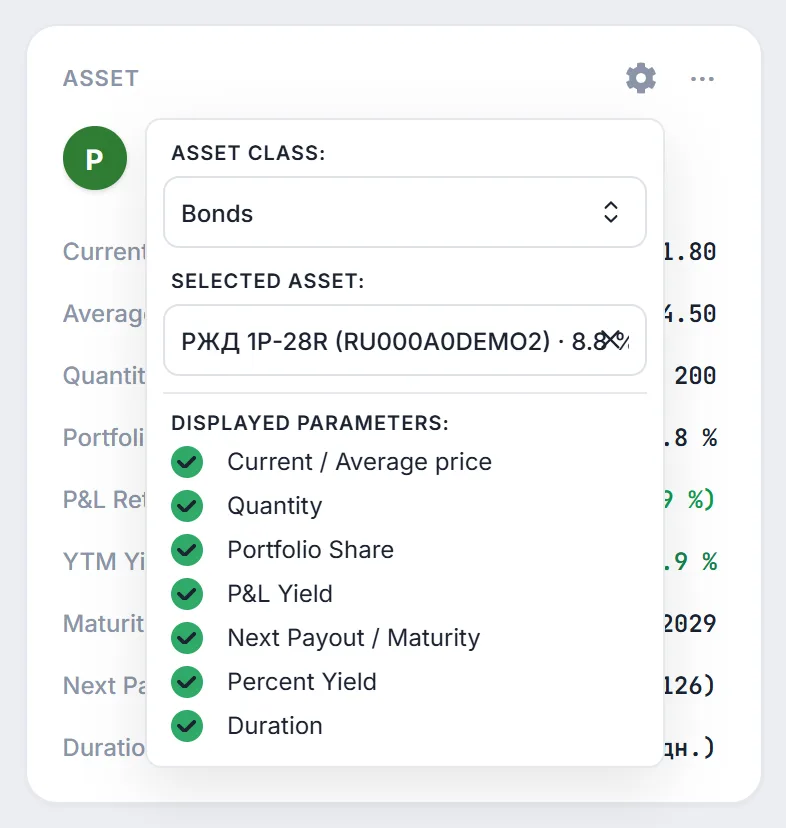
The gear icon in the card header lets you switch the security and tick the "Displayed parameters":
| Menu option | What the card shows |
|---|---|
| "Current / Average price" | "Current Price" and your "Average Price" |
| "Quantity" | how many units you hold |
| "Portfolio Share" | the security's weight in percent |
| "P&L Yield" | unrealized profit or loss on the position in rubles and percent |
| "Next Payout / Maturity" | date and amount of the next payout from the 12-month payment calendar; for bonds also the "Maturity Date" |
| "Percent Yield" | "YTM Yield" for bonds, "Current coupon/div." for other securities |
| "Duration" | bonds only: duration in years and days |
What YTM and duration mean is explained in detail in the Methodology section.
5. Caveats and limitations
- Portfolio securities only. The asset card picks from your current positions. If you sell the security completely, the card goes back to "Asset not selected".
- Privacy mode. When amounts are hidden, prices, P&L and the payout amount on the card are replaced with dots; portfolio share and quantity stay visible.
- Public page. All custom widgets can also be used in the public page builder. Visitors see the finished card without the settings gear.
- Deleting a dashboard deletes its widgets together with their content.
6. Frequently asked questions (FAQ)
Can I display a divider with a card background and border?
Yes: simply toggle off the "Transparent background" switch in the divider settings menu — the card will then render with the standard Bento Grid background and border.
Can I put a security that is not in my portfolio into the asset card?
No, the list is built from your portfolio positions. Other securities are easier to look at on the security page or in portfolio comparison.
Why is there no "Duration" option for a stock?
Duration is calculated for bonds only, so the checkbox appears when a bond is selected. For stocks, "Current coupon/div." is shown instead of YTM.
How do I add a table to a note?
Use Markdown table syntax: a header row separated by vertical bars, a row of dashes below it (|---|---|), then data rows.
Are notes visible on my other devices?
Yes: the text and widget settings are saved together with the dashboard layout in your account.