

Multiple Dashboards: a Separate Screen for Every Strategy
A single home screen quickly turns into a pile of widgets: coupons next to broker fees, a FIRE forecast next to trading activity. In Firewire you can create several dashboards — one for dividends, one for bonds, one for trading — and switch between them in the sidebar. Each dashboard has its own name, icon, color and its own set of widgets.
- Where: sidebar → "Dashboards" → "+ Create Dashboard".
- Look: a name of up to 50 characters, a tooltip of up to 200, one of 12 icons and an accent color.
- Content: widget set, sizes and widget settings are stored separately for each dashboard, in your account.
- Limit: 1 dashboard on Free, 3 on Starter, 10 on Investor, 30 on Expert.
1. Why have several dashboards
A Firewire dashboard is a grid of widgets you assemble yourself (the grid itself is covered in Bento Grid Dashboard). When you have several goals, it is easier to spread them across screens:
- "Dividends" — upcoming payouts, cash flow forecast and real return;
- "Bonds" — YTM, duration, credit quality and the maturity calendar;
- "Trading" — trading activity and fees;
- "FIRE" — the path to financial independence plus a note with your plan.
All dashboards show data of the same portfolio or account selected in the app: only the widget set and layout differ. If you want to split the money itself by goals, create separate portfolios instead.
2. Where the dashboards live
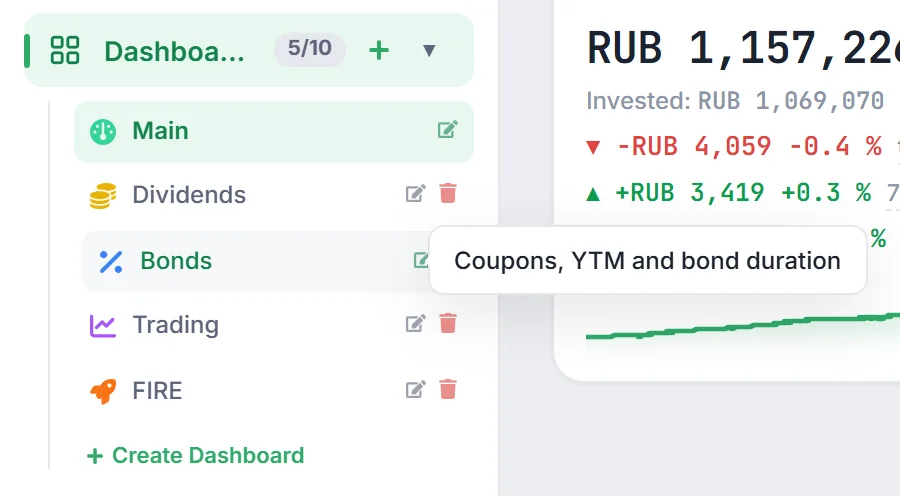
The list of dashboards sits in the sidebar under "Dashboards":
- next to the item there is a counter such as 4/10: how many dashboards you have created and how many your plan allows;
- the "+" button next to the counter creates a new dashboard, the arrow collapses and expands the list;
- below the list there is a "+ Create Dashboard" link;
- hovering over a dashboard shows its tooltip, and the "Edit" and "Delete" icons sit to the right of its name.
The first dashboard is called "Main": Firewire creates it automatically, it opens at the app's home address, and it cannot be deleted — only renamed or given another icon and color.
3. How to create a dashboard
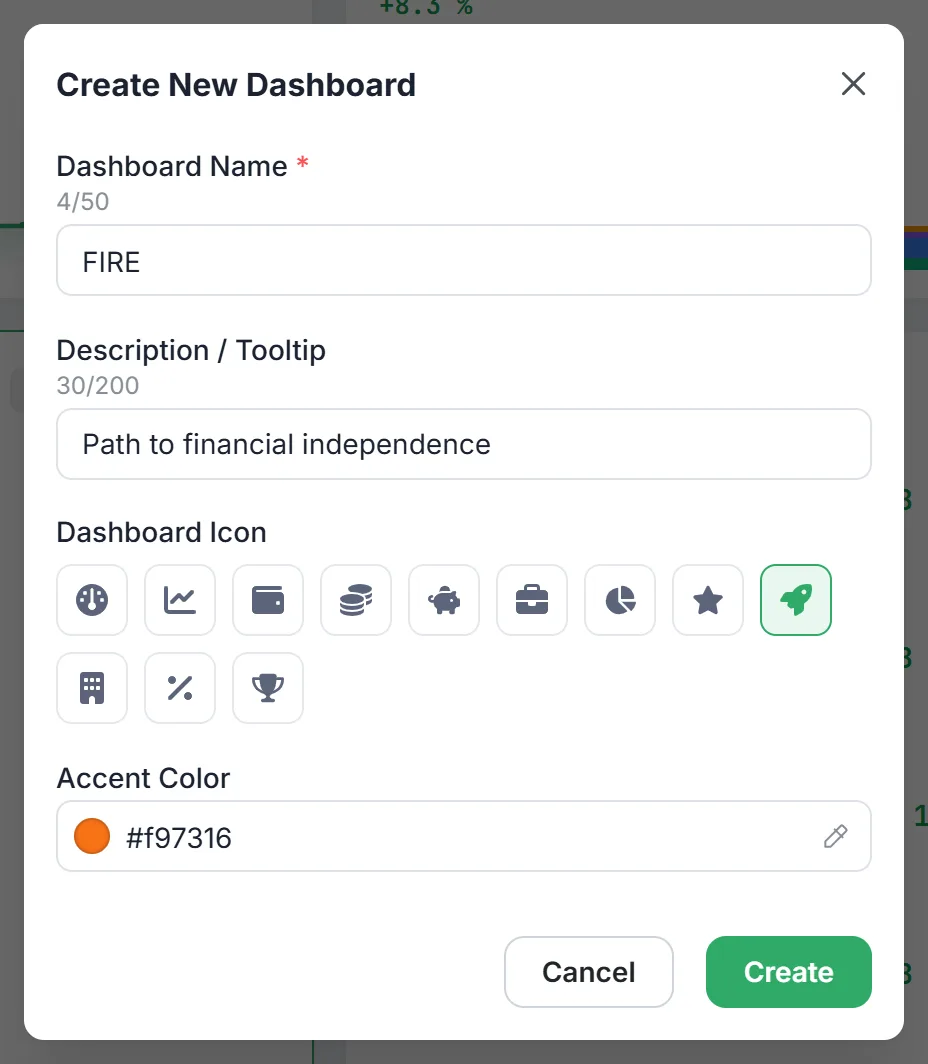
- Click "+" next to "Dashboards" or "+ Create Dashboard" below the list. The "Create New Dashboard" window opens.
- "Dashboard Name" — required, up to 50 characters: for example, "Dividends" or "Trading".
- "Description / Tooltip" — up to 200 characters. This text pops up when you hover over the dashboard in the sidebar.
- "Dashboard Icon" — pick one of 12: gauge, chart, wallet, coins, piggy bank, briefcase, pie chart, star, rocket, building, percent, trophy.
- "Accent Color" — one of seven preset swatches or any color from the picker. The dashboard icon in the sidebar and in the screen title takes this color.
- Click "Create" — Firewire opens the new dashboard right away.
A new dashboard does not open empty: it comes with a starter set of widgets. Click "Configure" in the top right corner, remove what you do not need and add widgets via "Add widget". The layout is saved automatically and only for this dashboard — other screens are not affected. For your own notes and for tracking single securities, see the note and asset widgets.
4. How to rename or delete a dashboard
- Rename, change the icon or color. Click the pencil icon to the right of the dashboard in the sidebar — the "Edit Dashboard" window opens with the same fields. Confirm with "Save".
- Delete. The trash icon opens the "Delete Dashboard" window. This cannot be undone: the dashboard's widgets and layout settings are deleted with it. Your portfolio data is not touched. The "Main" dashboard has no trash icon.
Each dashboard's layout is stored in your account on the server, not only in the browser, so you get the same set of screens on your computer, in the desktop app and the PWA.
5. Limits by plan
| Plan | Dashboards |
|---|---|
| Free | 1 |
| Starter | 3 |
| Investor | 10 |
| Expert | 30 |
The limit is enforced both by the interface and by the server. Once you have as many dashboards as your plan allows, trying to create another one shows a "Dashboard limit reached" notification suggesting an upgrade. Prices and plan contents are on the pricing page.
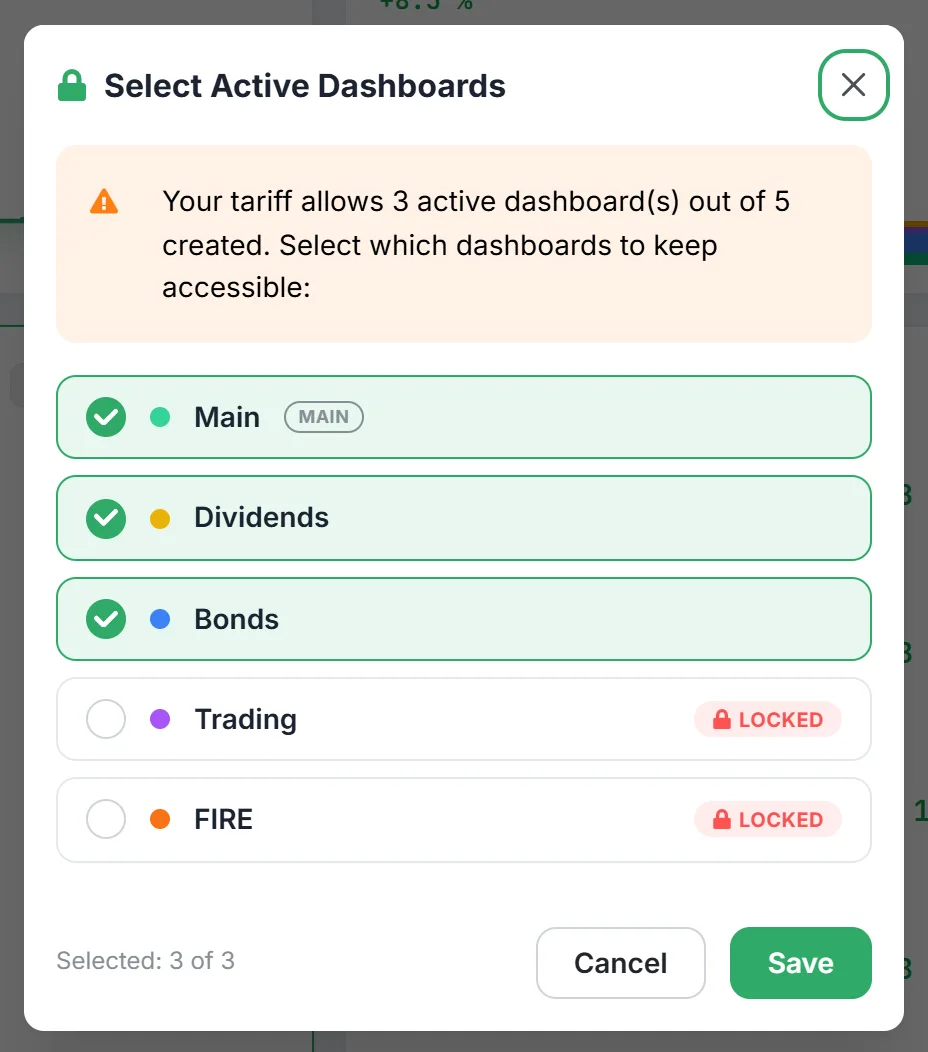
If your plan is downgraded, extra dashboards are not deleted but locked: the first ones in order stay active within the new limit, the rest get a lock icon and the "Locked" label. A "Select active dashboards" link appears below the list — in the "Select Active Dashboards" window you can tick which screens stay available (at least one, at most what your plan allows). The same button is shown on the screen of a locked dashboard. After upgrading, open the locked dashboard, click "Select active dashboards" and tick it — it comes back with all its widgets.
6. Frequently asked questions (FAQ)
Can different dashboards show different portfolios?
No: a dashboard is a widget layout, and the data comes from the portfolio or account selected in the app. To split money by goals, create separate portfolios and switch between them.
What happens to the widgets if I delete a dashboard?
The dashboard's widget set and widget settings are deleted, including the text of notes. Trades, positions and other dashboards stay as they were. Deletion cannot be undone.
Why is there no delete button for the "Main" dashboard?
"Main" opens on the app's start page, so it always exists. You can rename it and change its color, but not delete it.
Will my dashboards disappear after a downgrade?
No. Extra dashboards are locked but stay in the list with all their widgets. Use "Select active dashboards" to decide which ones are open now, and to bring locked ones back after an upgrade.