

Automatic Alerts: Issuer Rating Changes and Idle Cash
Firewire creates two alerts on its own, with no setup: when the credit rating of an issuer in your portfolio changes, and when a noticeable amount of idle cash builds up in an account. Both appear in the Notification Center and, if you wish, can also reach you via Telegram, email and push notifications.
- Rating: an "Изменение рейтинга" (rating change) alert when an issuer's rating in the instrument directory changes from one value to another.
- Idle cash: a "Свободный остаток на счете" (free balance) alert when cash in an account exceeds both 5% of its value and RUB 10,000.
- Fixed thresholds: 5% and RUB 10,000 are set by Firewire and cannot be changed by users.
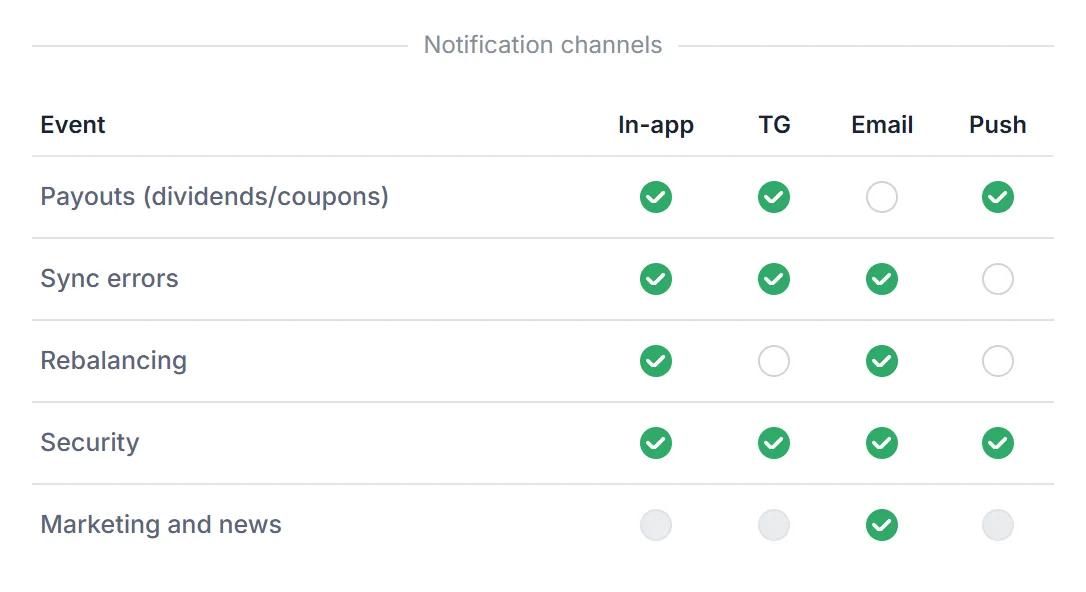
- Channels: in Telegram, Email and Push these alerts follow the "Security" row of the "Notification channels" table.
1. What these alerts are
Most Firewire notifications are tied to events you already expect: a coupon, a dividend, a support reply. Automatic alerts cover things that are easy to miss:
| Alert | Title (in Russian) | Label and filter in the Notification Center |
|---|---|---|
| Credit rating change | "Изменение рейтинга <ticker>" | "Rating", "Ratings" filter |
| Idle cash in the account | "Свободный остаток на счете" | "Info", "All" filter only |

2. Issuer credit rating changes
Firewire keeps an instrument directory with names, ISINs, coupon parameters and credit ratings. The directory is refreshed through the BCS API — when a BCS account syncs, and for new securities from other brokers if you have BCS connected. On every refresh Firewire compares the stored rating with the new one. If both values are known and differ, an alert is created for every account holding that security. In the English interface its text reads:
"Credit rating for issuer <name> (<ticker>) has been changed from <old> to <new>."
- If a rating appears for the first time or disappears from the directory, there is no alert — both values are required.
- A repeat with the same new rating for the same security on the same day does not create a second notification.
- The rating source is the directory refreshed through BCS. Until the directory is updated, there is no alert.
How ratings affect the risk of the bond part of your portfolio is explained in credit risk and the high-yield share.
3. Idle cash in the account
After each account sync, Firewire adds up the ruble value of all holdings and, separately, the cash holdings: positions with the "cash" type and the ruble balance (ticker RUB). It then calculates the cash share:
where $C$ is cash in the account and $V$ is the value of all account holdings. Both conditions are strict and must hold at the same time:
| Cash in the account | Share of portfolio | Alert |
|---|---|---|
| RUB 48,300 | 6.2% | Yes |
| RUB 8,000 | 20% | No — the amount is not above RUB 10,000 |
| RUB 60,000 | 3% | No — the share is not above 5% |
The alert text (in Russian) states the amount of free funds in rubles, their share of the portfolio and that these funds are not invested.
- One entry a day per account. While the alert is unread, later syncs on the same day update its amount and share. Once you read it, no new one appears until the next day.
- Per account. The share is calculated against the value of that particular account, not all accounts combined.
4. Thresholds are not configurable
The 5% and RUB 10,000 thresholds for idle cash are set by Firewire and are the same for everyone. You cannot change them or turn off the creation of these alerts in settings. The "Rebalancing thresholds" settings in the "Notifications & Telegram" block ("Price drop alerts", "Rebalance threshold", "Min. rebalance amount, ₽") apply to other notifications and do not affect these two alerts.
5. Delivery channels: Telegram, Email, Push
Both alerts always land in the Notification Center. To receive them outside the app as well:
- Open "Settings" → the "Connections & Main" tab → the "Notifications & Telegram" block.
- Link the Telegram bot — see how to link the Telegram bot. Turn on the "Receive notifications" switch.
- In the "Notification channels" table, tick the columns you want in the "Security" row: "TG", "Email" or "Push". There are no separate rows for rating and idle cash alerts — they follow this row.
- Click "Save settings".
6. What to do after an alert
An alert is information, not a recommendation. After a rating change, it is worth opening the bond page and reviewing its yield and risk — see bond analysis. Idle cash may be a deliberate reserve: what to do with it is your decision.
7. Caveats
- Alerts are not created for hidden accounts or the demo portfolio.
- Idle cash is checked only after an account sync: without one, no alert appears.
- Alert titles and text are in Russian; in the English interface only the rating change text is translated.
8. Frequently Asked Questions (FAQ)
Can I change the 5% or RUB 10,000 threshold?
No. The thresholds are set by Firewire and cannot be configured. The alert appears only when cash in the account exceeds both 5% of its value and RUB 10,000.
Why did I not get a rating alert even though the agency changed the rating?
Firewire learns about ratings from the instrument directory, which is refreshed through the BCS API. The alert appears when the new value reaches the directory and differs from the previous one. If the directory had no rating before, there is no alert either.
How do I get these alerts in Telegram?
Link the bot in the "Notifications & Telegram" block, turn on "Receive notifications" and tick "TG" in the "Security" row of the "Notification channels" table.
Where do I find past alerts?
In the Notification Center: rating alerts under the "Ratings" filter, idle cash alerts under "All". Alerts you have put away are in the "Archive" tab.