

The Positions Page: Filters, Closed Holdings and Restoring Securities
The Positions page lists every security in the portfolio with price, share, P/L, payouts, a 30-day mini chart and time to the LDV exemption. It also has KPIs for the bond part, Active/Closed filters, and hidden or deleted securities can be restored in settings.
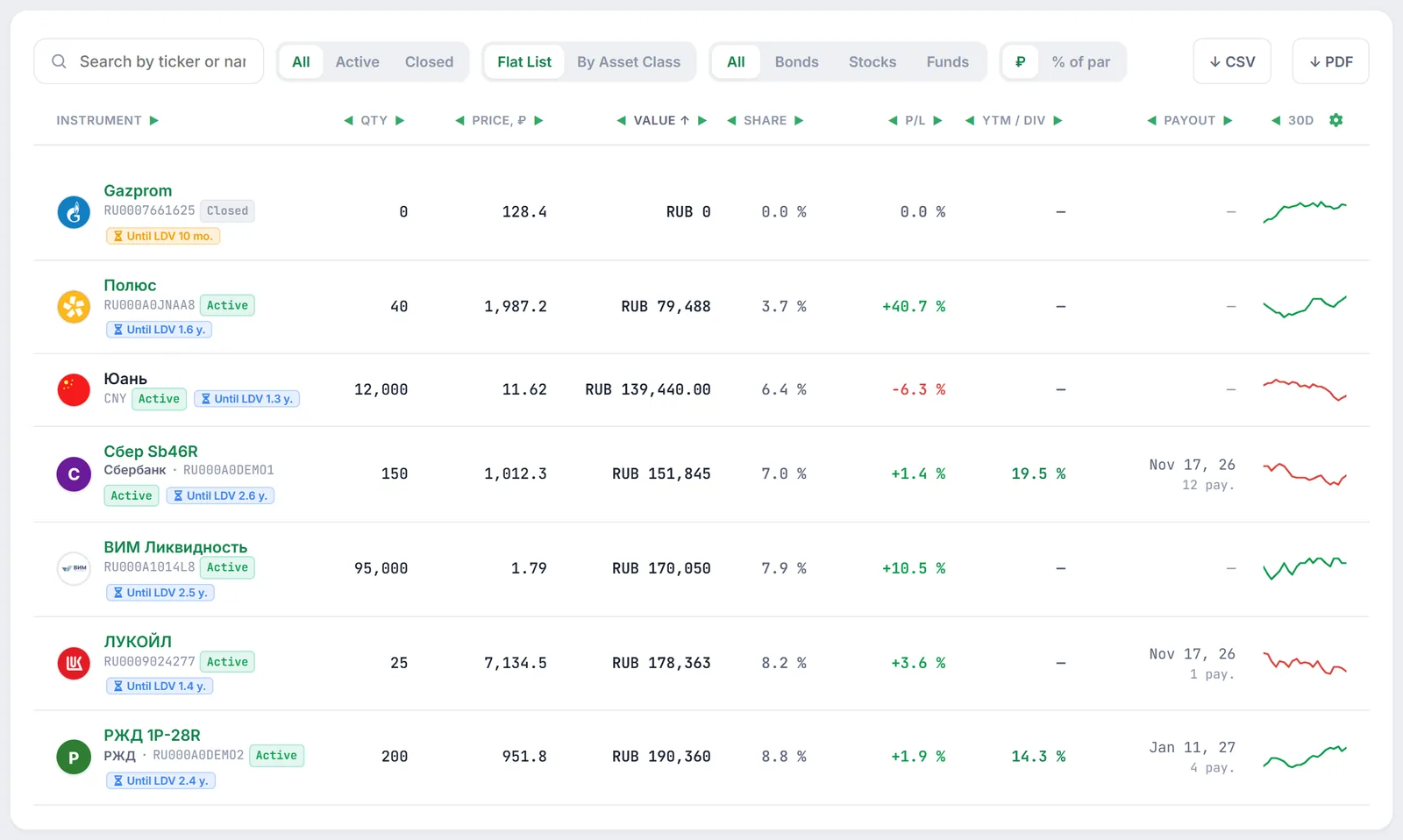
- Filters: “All / Active / Closed”, “Flat List / By Asset Class”, “All / Bonds / Stocks / Funds”, price in “₽” or “% of par”.
- In a row: “Active” or “Closed” badge, “Until LDV”, the “30d” sparkline with the change over 1, 7 and 30 days.
- KPIs: value, P/L, YTM and “Mod. Duration” — the last two for bonds only.
- Restore: Settings → Positions → Position Management → Restore.
1. What the Positions page shows
The Positions page is a detailed list of everything in your portfolio: securities, funds and currency for the account selected in the header or for all accounts at once. The same security held with different brokers is merged into one row, and broker icons next to the name show where it is held.
Open Positions in the sidebar (address /positions). At the top of the page are Deposit / Withdrawal (manual entry of deposits and withdrawals), “?” for a tour of the screen and Configure: in edit mode blocks can be dragged, resized and hidden, and hidden blocks return via “Add block”.
2. KPIs at the top of the page

- Portfolio Value — the total value of positions including cash, plus the change “today” in roubles and percent.
- Total Return (P/L) — unrealized profit or loss on open positions “all time”.
- Yield to Maturity (YTM) — the weighted average YTM of the bond part of the portfolio, labelled “Bonds only”. Stocks and funds are not included; with no bonds you see a dash.
- Mod. Duration — by how many percent the value of the bonds changes for a 1 pp shift in rates. Below it — duration in years and days, for example “Duration: 3.9 yrs (1424 days)”.
Modified duration links the price change to the change in yield:
With $D_{\text{mod}} = 3.4\%$ a 1 pp rise in rates ($\Delta y = 0.01$) lowers the value of the bond part by about 3.4%. More in duration.
3. Table filters
Above the positions table is a row of filters:
- Search — by ticker, name or issuer.
- All / Active / Closed — position status (see section 4).
- Flat List / By Asset Class — one list or groups “Stocks”, “Funds”, “Bonds”, “Currency” and “Other”. Each group shows its portfolio share in roubles and percent and can be collapsed.
- All / Bonds / Stocks / Funds — instrument type. The selected segment goes into the page address, so a filtered list can be bookmarked.
- ₽ / % of par — bond price format (tooltip “Bond price format”).
- ↓ CSV and ↓ PDF — export of the visible table rows.
The list view and price format are remembered in the browser, while the status filter returns to “All” every time you open the page. Table columns: “Instrument”, “Qty”, “Price”, “Value”, “Share”, “P/L”, “YTM / Div”, “Payout” and “30d”; clicking a header sorts by it.
4. Active and closed positions
Next to each row’s ISIN there is a status badge: Active if the security is in the portfolio, or Closed if its quantity is zero. The Active filter keeps positions with non-zero quantity or value, Closed keeps rows where both quantity and value are zero.
Note: a sold security appears in the table only if it is present in the account’s latest positions snapshot. If your broker does not report closed positions, the “Closed” list will be empty — see sales history in Trades instead.
5. Price as a percentage of par
Bonds are quoted as a percentage of par, and the % of par switch shows the price the same way as the exchange order book:
where $N$ is the face value. A bond at RUB 951.8 with a face value of RUB 1,000 is 95.18%. Stocks, funds and currency stay in roubles in this mode; the column header changes from “Price, ₽” to “Price, %”.
6. The 30-day sparkline
The 30d column is a mini chart of daily closing prices over the last 30 days. The line is green if the last price is not below the first one and red if it is lower. Hovering shows “Price Change” for “1 day”, “7 days” and “30 days”:
- in “₽” mode — the change in roubles per security (for bonds, converted from percent of par);
- in “% of par” mode — for bonds the change in percentage points of par, for other securities in percent.
Note: while candles are loading, or if there are fewer than two of them in 30 days, a placeholder line is drawn instead of a real chart and the tooltip says “Loading...”. Roubles have no sparkline.
7. The “Until LDV” badge
Under the security name there is a badge for the long-term ownership exemption (LDV): gains from selling securities held for more than three years may be exempt from Russian personal income tax. Firewire takes the dates of your purchases of the security and for each one computes the date three calendar years later:
- LDV (green) — three years have passed for all purchases;
- N% LDV — the exemption applies to part of the holding;
- Until LDV … — time left to the nearest date: orange if less than a year, blue if longer.
Hovering opens a breakdown “Eligible” / “Until LDV” in pieces and the list of purchases with dates and accounts. If there are no trade dates, a dash is shown with a note that purchase history is required.
Note: the badge counts all purchases of the security and does not subtract sold lots, so after a partial sale the eligible quantity may differ from what you hold. The exemption rules are covered in IIS and LDV tax deductions.
8. Hide or delete a security
You can remove a security from display and calculations in the positions tree in the sidebar (it unfolds under the “Positions” item):
- Hover over the security in the tree — two icons replace the sync time.
- Hide (crossed-out eye) applies immediately.
- Delete (trash can) asks for confirmation in the “Delete Position” dialog — the position can be restored in settings.
Both actions work the same way: the security disappears from position lists and is excluded from portfolio calculations. The only difference is the status it later shows in settings — “Hidden” or “Deleted”. The action applies to the account selected in the header at the moment of the click, or to all accounts if all are selected.
9. How to restore a hidden or deleted position
- Open Settings → the Positions tab.
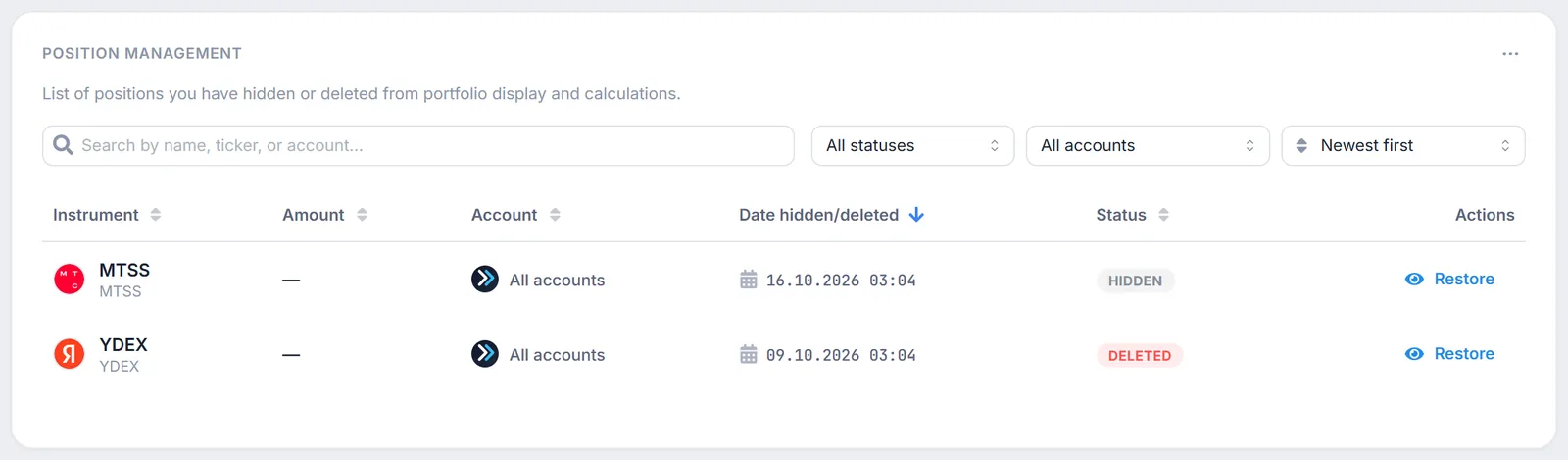
- In the Position Management widget find the security: there is search by name, ticker or account, the All statuses / Only hidden / Only deleted filter, an account filter and sorting (by date hidden, amount, name, account or status).
- Click Restore in the row — the security returns to lists and calculations.
The table shows “Amount”, “Account” (“All accounts” if the action applied to all of them), “Date hidden/deleted” and “Status”. While a security is hidden its amount may show as a dash — the position is excluded from the data.
10. Caveats
- Unrealized result. P/L in the table is at current prices, without future taxes and fees.
- YTM and duration — bonds only. With no bonds the KPIs show a dash.
- View settings live in the browser. On another device list view, price format and block layout are back to defaults.
- Plan. The page is available on any plan.
Coupons and dividends on your positions are covered in the payout calendar.
11. Frequently asked questions (FAQ)
What is the difference between Hide and Delete?
In effect — none: in both cases the security is excluded from lists and calculations and returns with “Restore” in Settings → Positions. They differ in the status in the list (“Hidden” / “Deleted”) and in that deletion asks for confirmation.
Why are stocks still in roubles in “% of par” mode?
Only bonds have a percentage of par. For stocks, funds and currency the switch does not change the price, and the sparkline tooltip shows the change in percent.
Why does a security show “Until LDV” if I have already sold it?
The badge is based on the dates of all purchases of the security and ignores sales. For a closed position it is for reference only.
Can I see only bonds with prices in percent?
Yes: choose the “Bonds” segment and the “% of par” format. The segment is saved in the page address and the price format in the browser.