

Native Desktop Apps (Tauri v2) & PWA Installation
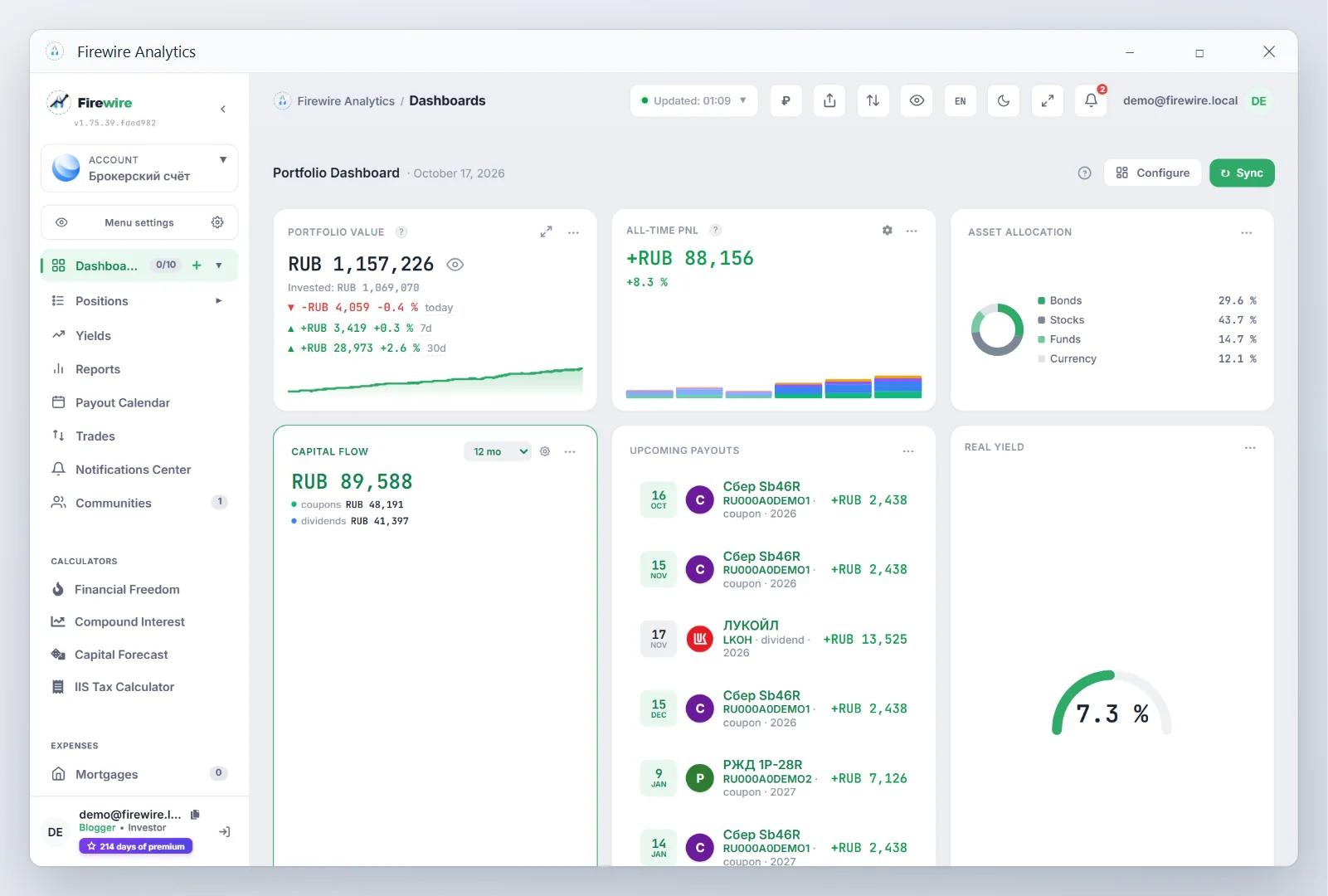
Firewire Analytics is available as a web platform and as a native standalone desktop application for Windows, macOS and Linux, as well as a Progressive Web App (PWA) for any computer and mobile devices.
Native desktop applications are powered by Tauri v2: installers for Windows (about 10–11 MB), macOS and Linux are published in the public repository unchase/firewire-releases, RAM usage stays low, and launches instantly in a dedicated standalone window. On smartphones and desktop browsers, one-click PWA installation enables full-screen mode and offline caching.
1. Key Benefits of Using the App
- Dedicated Workspace: Runs in an isolated window without address bars, tabs, or distracting browser elements.
- Instant Launch: Single-click launch from the Windows Taskbar, macOS Dock, or smartphone home screen.
- Extreme Efficiency: Native WebViews (WebView2, WebKit) mean the app ships no browser of its own, so the Windows installer is about 10–11 MB and memory usage is lower than with Electron apps.
- Persistent Sessions: Custom BentoGrid layouts, active portfolios, and filters stay saved across sessions.
- Hardware Acceleration: GPU-accelerated rendering by the system web engine for for the AI Copilot and analytics charts (XIRR, TWR).
2. Desktop Installation (Windows, macOS, Linux)
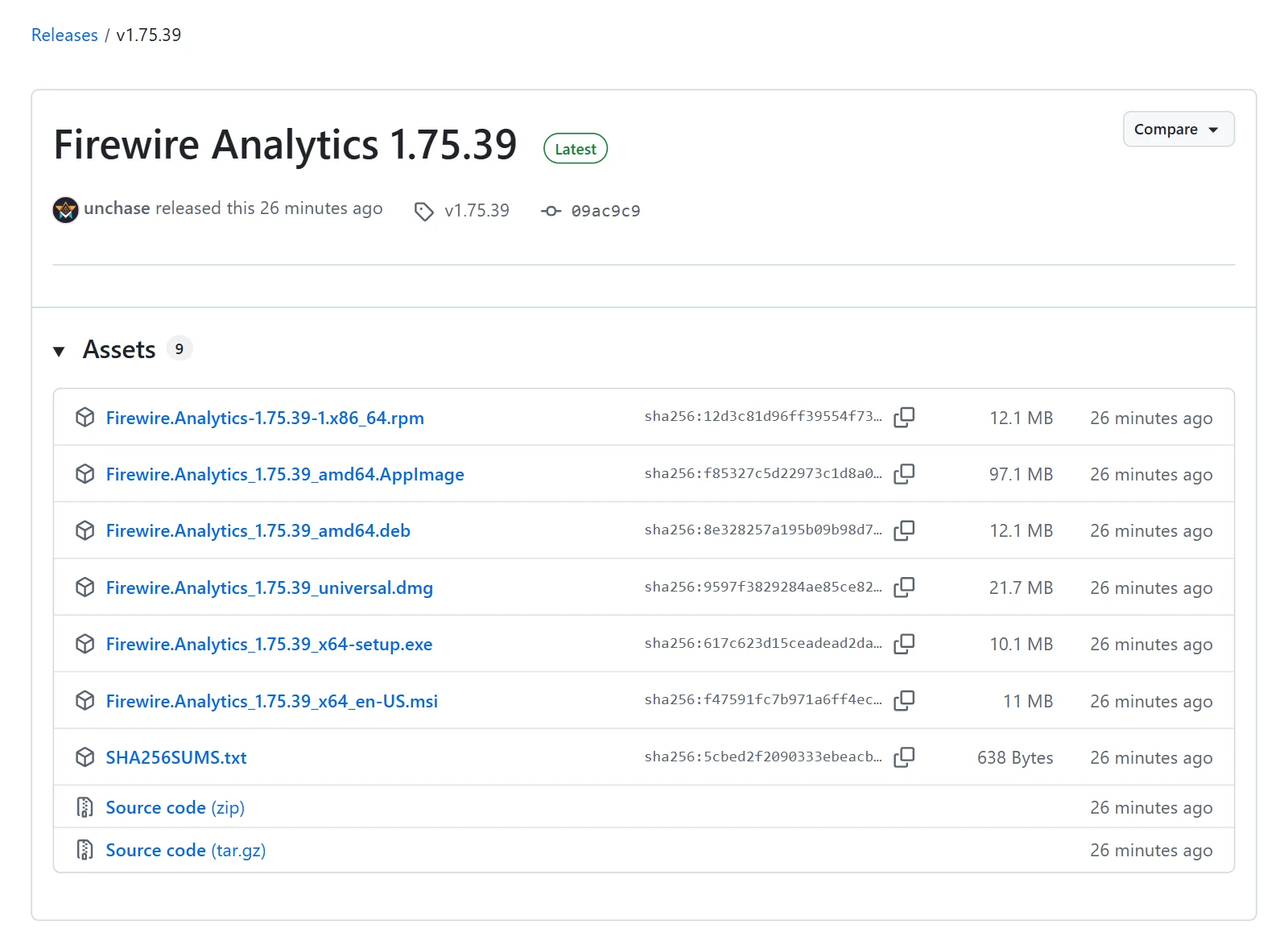
Official builds are published in the public GitHub repository unchase/firewire-releases, together with the changelog and SHA-256 sums to verify the files. Windows installers ship with every release, macOS and Linux builds with some of them: if the latest release has no file for your system, take the newest release that has one from the list of releases, or install Firewire as a web app (PWA), see section 3.
| Platform | Architecture | Format | Installation |
|---|---|---|---|
| Windows 10 / 11 | x64 | .exe (NSIS), .msi |
Run the installer and follow the wizard. The .exe installs for the current user without admin rights, the .msi for all users of the computer. Uses built-in Microsoft WebView2. |
| macOS 10.13 or later | Apple Silicon and Intel | .dmg (universal build) |
Open the image and drag Firewire Analytics to Applications. The app is not notarized by Apple: on first launch, allow it in System Settings → Privacy & Security → «Open Anyway». Uses the built-in WebKit. |
| Linux | x86_64 | .deb, .rpm, .AppImage |
.deb for Ubuntu, Debian and Mint, .rpm for Fedora and openSUSE; the AppImage runs on any distribution without installation. The packages install WebKitGTK 4.1 themselves. |
Installing on Windows:
- Open the latest release in unchase/firewire-releases.
- Under Assets, download
Firewire.Analytics_<version>_x64-setup.exe(install for yourself) orFirewire.Analytics_<version>_x64_en-US.msi(install for all users or via group policy). - The installers are not code-signed yet, so Windows may show a SmartScreen warning. Before choosing «More info» → «Run anyway», compare the file hash with
SHA256SUMS.txtfrom the same release: in PowerShell,(Get-FileHash .\Firewire.Analytics_<version>_x64-setup.exe -Algorithm SHA256).Hash.ToLower(). - Run the installer and sign in with your Firewire account.
Installing on macOS:
- Download
Firewire.Analytics_<version>_universal.dmgfrom the release and compare its hash withSHA256SUMS.txt: in Terminal,shasum -a 256 ~/Downloads/Firewire.Analytics_<version>_universal.dmg. - Open the image and drag Firewire Analytics to the Applications folder.
- Launch the app. macOS says it cannot verify the developer: open System Settings → Privacy & Security and click «Open Anyway». If macOS says the app is «damaged», run
xattr -dr com.apple.quarantine "/Applications/Firewire Analytics.app"in Terminal and launch it again.
Installing on Linux:
- Download the package for your system and compare its hash with
SHA256SUMS.txt:sha256sum <file>. - Install it from the folder with the file:
sudo apt install ./Firewire.Analytics_<version>_amd64.deborsudo dnf install ./Firewire.Analytics-<version>-1.x86_64.rpm. The AppImage only needs to be made executable (chmod +x Firewire.Analytics_<version>_amd64.AppImage) and run; on Ubuntu 22.04 and later it needs thelibfuse2package (libfuse2t64on Ubuntu 24.04).
3. Browser PWA Installation
In Chromium-based browsers (Chrome, Edge, Opera):
- Click "Install" in the bottom-right toast prompt.
- Confirm the installation prompt in the browser toolbar.
- Alternatively, click the install monitor icon directly on the right side of the address bar.
4. iOS / iPadOS Installation (Safari)
- Open
https://fire-wire.ruin Safari on your iPhone or iPad. - Tap the Share button (box with an upward arrow) in the toolbar.
- Scroll down and select "Add to Home Screen".
- Confirm the name and tap "Add".
5. App Status in Settings
Go to Settings → Appearance to see the current installation status widget and trigger installation at any time.