

In-App Support: Tickets and Conversations
You can contact Firewire support without leaving the app: report a bug with screenshots and browser logs, leave feedback or suggest an idea. Every message becomes a ticket with a number and a status, and support replies arrive in a conversation inside the same ticket.
- Where: the round “Support & Feedback” button in the bottom right corner and Settings → “Support”.
- Three forms: “Report a bug”, “Leave feedback”, “Suggest an idea”.
- With a bug report: up to 5 files (photos up to 10 MB, videos up to 50 MB) and browser console messages.
- Secrets: “Attach sensitive data” — encrypted and kept for no longer than 14 days.
1. Why write from inside the app
A ticket created in the app is tied to your account and keeps the whole history: what you described, which files you attached and what support replied. Firewire adds technical details to a bug report on its own — your browser, screen size, language and the address of the page you were on — and, if you agree, the latest errors from the browser console. Support won't need to ask follow-up questions, and you won't need to dig through your mailbox. Other channels — the Telegram bot and email — are listed in the Feedback article (in Russian).
2. Where to find support
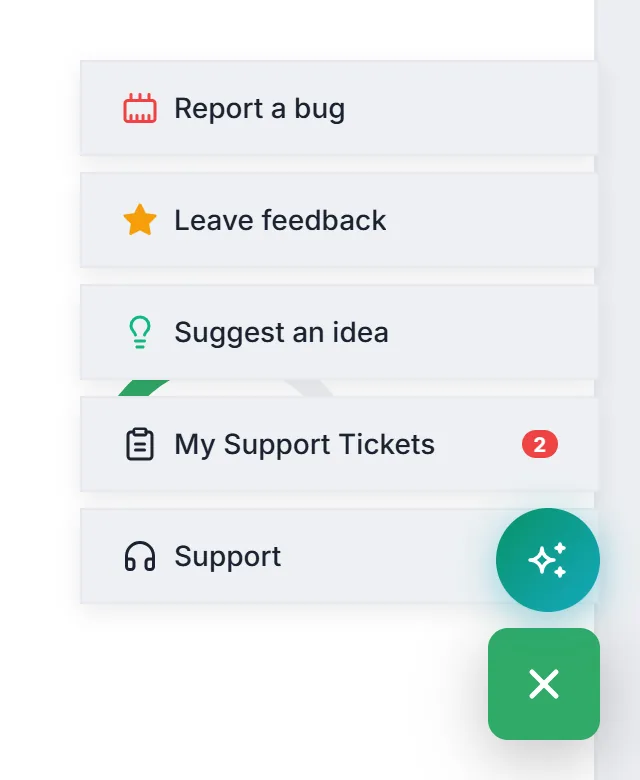
Click the round green “Support & Feedback” button in the bottom right corner of any screen after you log in. A menu opens:
- “Report a bug”, “Leave feedback”, “Suggest an idea” — forms that slide in from the right;
- “My Support Tickets” — the list of tickets with search and filters; the counter next to it shows how many tickets are open or in progress;
- “Support” — a link to the support Telegram bot.
The full list of tickets with conversations is also available in Settings on the “Support” tab. The red number on the tab shows how many tickets have a support reply you haven't opened yet.
3. How to report a bug
- “Subject” — briefly, what happened. Required.
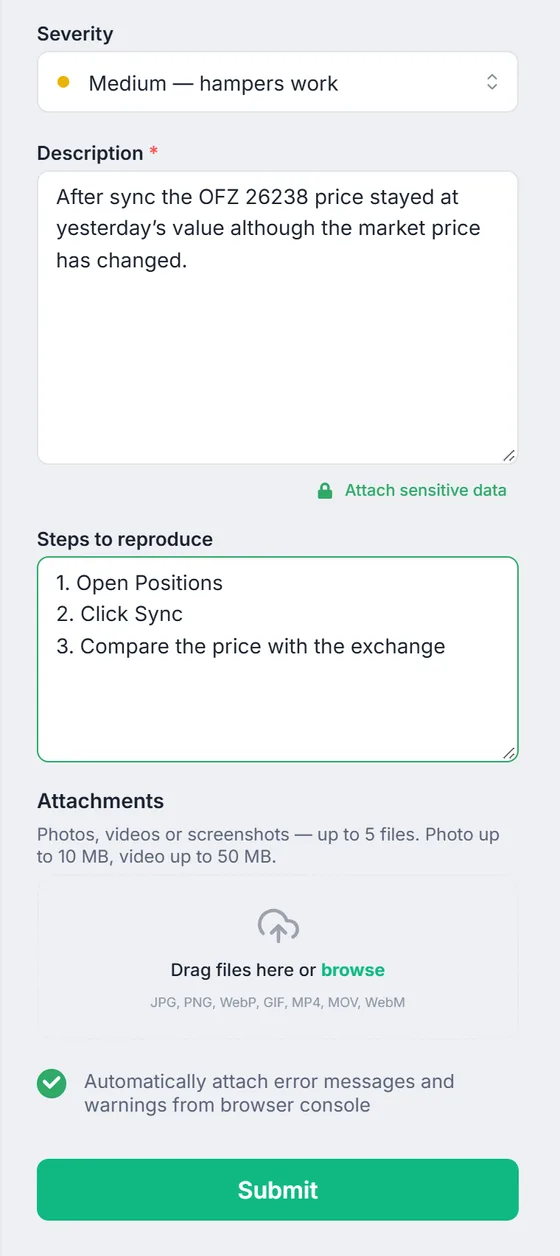
- “Severity”: “Low — hampers work slightly”, “Medium — hampers work” (selected by default) or “High — blocks features”.
- “Description” — in detail, what you see and what you expected. Required.
- “Steps to reproduce” — step by step, how to repeat the bug.
- “Attachments” — photos, videos or screenshots: up to 5 files, photos up to 10 MB, videos up to 50 MB (JPG, PNG, WebP, GIF, MP4, MOV, WebM). You can drag files into the form, pick them from disk or paste a screenshot from the clipboard.
- The “Automatically attach error messages and warnings from browser console” checkbox is on by default: the latest errors and warnings the browser recorded while you were using Firewire are added to the description.
- Click “Submit”. You will see the “Thank you for your message!” screen — the ticket has been created.
If you close the bug or idea form without sending it, the text you typed is kept in the browser and comes back the next time you open the form. The “Leave feedback” form has a star rating (five by default) and a “Your feedback” field; “Suggest an idea” has “Subject” and “Description”. Files can be attached only to a bug report and in the conversation.
4. Sensitive data: logs, configs, statements
Sometimes support needs a piece of a statement, a log or a config that you would rather not leave in plain text. For that there is the “Attach sensitive data” link under the “Description” field and a lock button in the conversation.
- Paste text or attach a file up to 15 MB and click “Attach”.
- The data is encrypted on the server, and only a marker stays in the message. It can be opened by you and the support administrator — with the “Show” button in the “Sensitive Data” block.
- The data is kept for no longer than 14 days and then deleted; after that the block shows “Loading error (14 days expiration period elapsed)”.
Support never needs your passwords or the master password for broker keys in any form — don't send them.
5. My Support Tickets: statuses and filters
Each ticket has a number, a type (“Bug / Issue”, “Feedback”, “Idea” or “Telegram Chat”), an update date, a message count and a status: “Open”, “In Progress”, “Resolved” or “Closed”. In Settings on the “Support” tab you can filter the list:
- by status — “Active” (open and in progress), “Open”, “In Progress”, “Resolved”, “All statuses”;
- by type — “All”, “Bugs”, “Feedback”, “Ideas”, “Telegram”;
- and sort by “Last message date”, “By creation”, “By ID”, “Subject” or “Status”, ascending or descending.
When support replies, Firewire shows a pop-up notification with the ticket number and subject.
6. The conversation inside a ticket
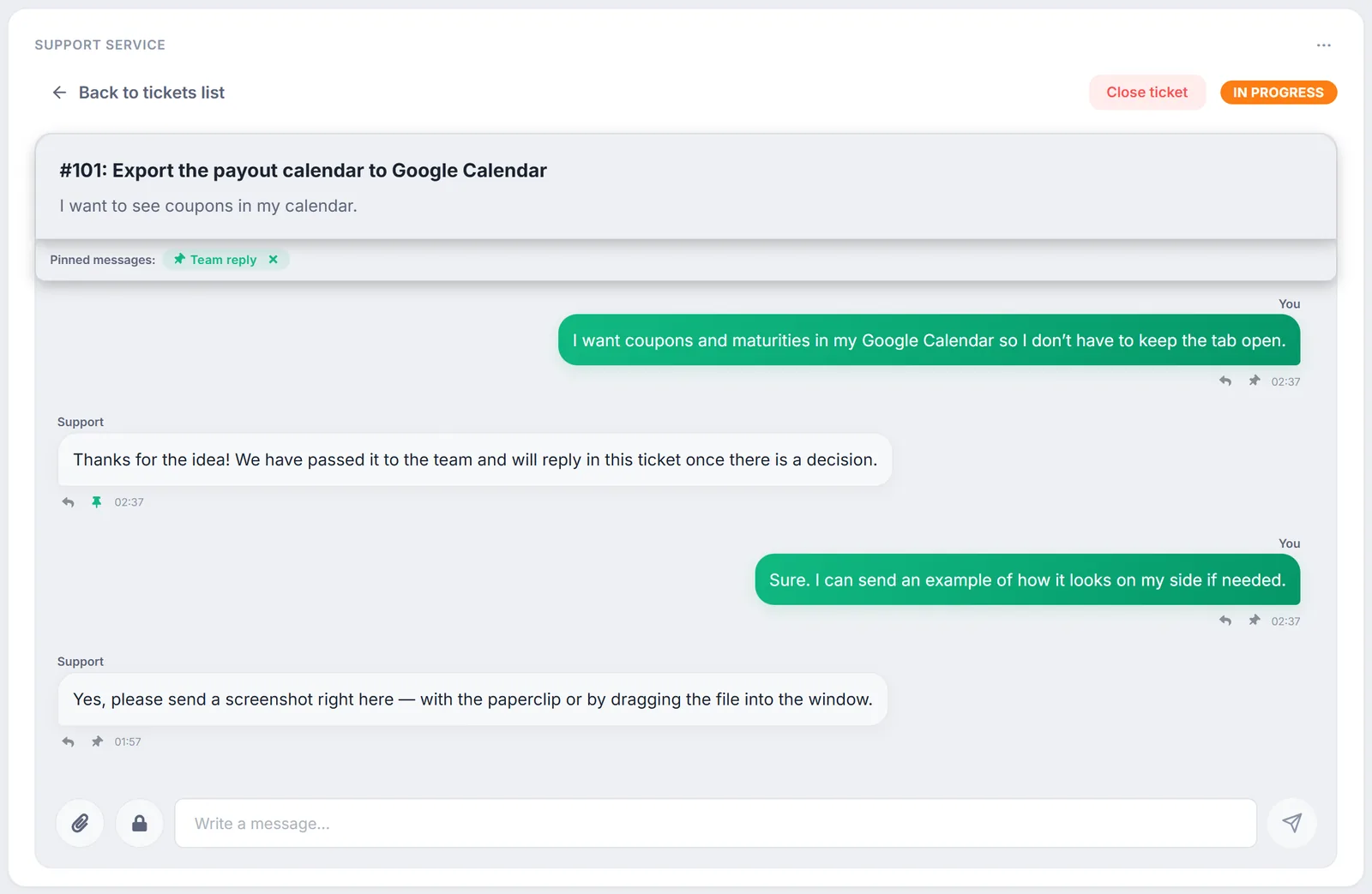
Open a ticket to see the conversation: your messages on the right, support replies on the left.
- Reply — the arrow under a message adds a quote; clicking the quote scrolls to the original message.
- “Pin” — the pin icon. You can set a “Pin label”, and the message appears in the “Pinned messages” row under the ticket title — handy for an important answer in a long thread.
- Files — the paperclip next to the “Write a message...” field, or drag a file into the window; the lock is for sensitive data.
- “Close ticket” — the button at the top, available while the ticket is open or in progress. After you confirm, you can no longer write to it.
7. Support replies in Telegram
On the “Support” tab in Settings there is a “Receive support response notifications in Telegram” block with the “Link Telegram” button. Once linked, replies arrive in Telegram and you can continue the conversation right in the messenger. Tickets started in the Telegram bot appear in the list with the “Telegram Chat” type.
8. Caveats
- Logged-in users only. The “Support & Feedback” button is shown in the app when you are logged in.
- A closed ticket cannot be reopened. You cannot write to a resolved or closed ticket — create a new one.
- The “read” mark is stored in the browser. On another device or after clearing site data, replies you have already read will be counted as new again.
9. Frequently Asked Questions (FAQ)
What exactly is sent from the browser console?
Errors and warnings the browser recorded while you were using Firewire — up to the 100 most recent entries. They are appended to the end of the description. If you don't want to send them, clear the checkbox before submitting.
What is the fastest way to attach a screenshot?
Take a screenshot and paste it into the open “Report a bug” form with Ctrl+V (Cmd+V on a Mac) — it appears under “Attachments”. You can also drag the file in with the mouse.
What is the difference between “Resolved” and “Closed”?
“Resolved” is set by support when the issue is done on their side; “Closed” is when you clicked “Close ticket” yourself. In both cases you can no longer write to the ticket, and the filter groups them together under “Resolved”.
Where do I write if I can't log in?
In-app support is available only after you log in. In that case, write to the Telegram bot or by email — the contacts are in the Feedback article.