

Master Password and Three Broker Key Storage Modes
Firewire encrypts your broker key right in the browser with your Single Master Password. When you connect a broker, you choose where the encrypted copy lives: only in this browser, also in your account, or on the server for 24/7 background updates. The choice affects access from other devices, updates while the app is closed, and what exactly the server keeps.
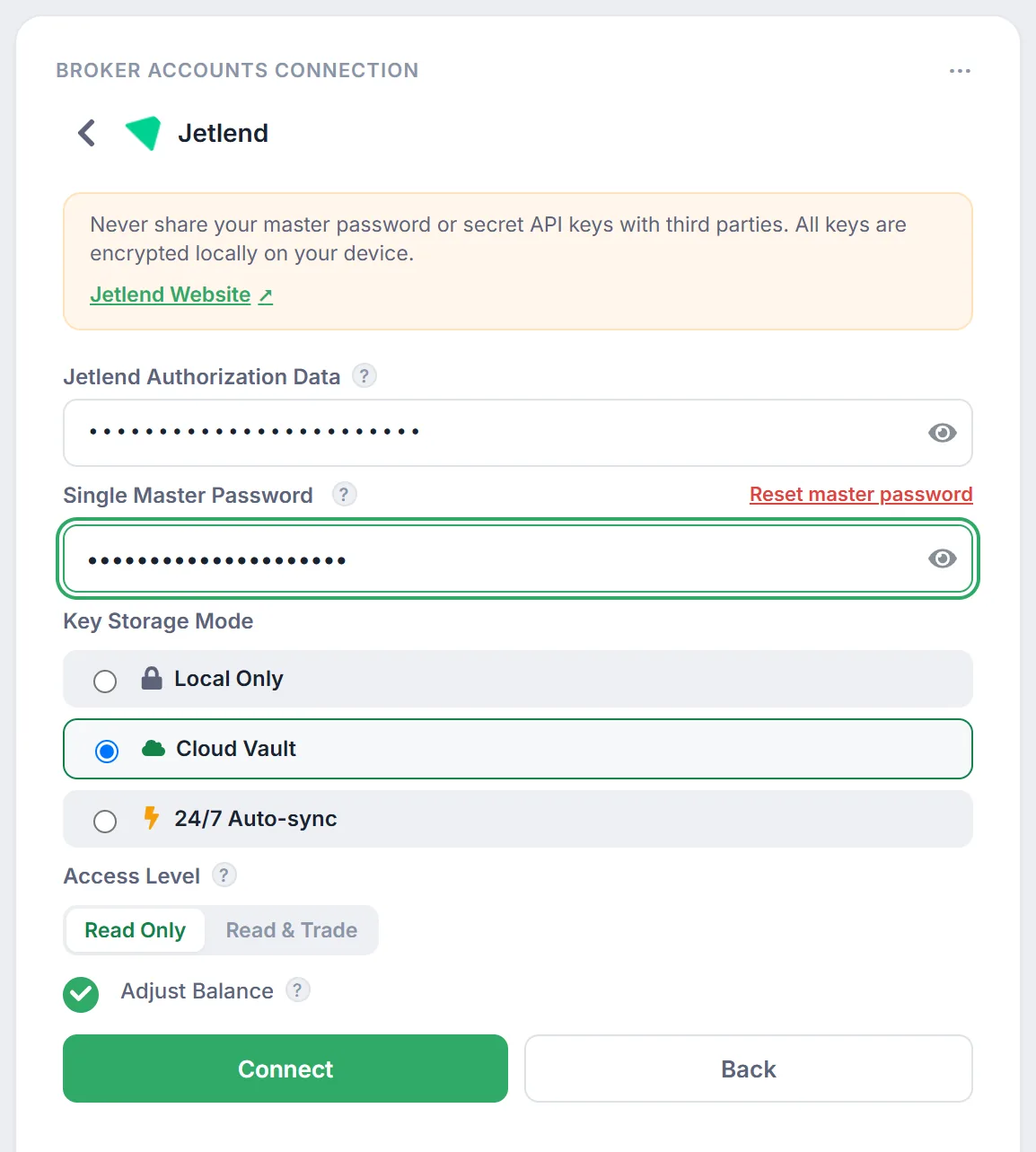
- Where: Settings → “Connections & Main” → the “Broker Accounts Connection” card → “Connect” next to a broker.
- Master password: one for all keys, at least 8 characters, kept only in the memory of the open tab and never sent to the server.
- Three modes: “Local Only”, “Cloud Vault” and “24/7 Auto-sync”. The last one requires the Starter plan or higher.
- Forgot the password: it cannot be recovered — “Reset master password” deletes all saved keys, and you will need to reconnect your brokers.
1. Why a master password and what it protects
To pull trades, coupons and balances, Firewire needs an access key from your broker: a token or a pair of API keys. That is sensitive data, so Firewire never stores it in plain form. Before saving, the browser encrypts the key with your master password: PBKDF2-HMAC-SHA-256 with 600,000 iterations turns the password and a random salt into an encryption key, and the token itself is encrypted with AES-256-GCM. With a wrong password decryption simply fails — there is no “almost right” result.
The master password is not saved anywhere: it lives in the memory of the open tab while you work with the app. After you log out or reload the page, you will have to enter it again the next time you need to start a sync. The encryption architecture is described in detail on the Security page.
2. Where to choose the storage mode
- Open Settings and the “Connections & Main” tab.
- In the “Broker Accounts Connection” card, click “Connect” next to a broker.
- Paste the broker token or keys (see the broker guides, e.g. T-Investments or BCS, for how to get them).
- Fill in “Single Master Password” — at least 8 characters.
- In “Key Storage Mode”, pick one of three options (“Cloud Vault” is selected by default). Hover over an option to see its description.
- Under “Access Level”, keep “Read Only” — that is enough for analytics — and click “Connect”.
3. The three modes: what stays in the browser and on the server
In every mode, a copy of the key encrypted with your master password is saved in the browser (localStorage). The difference is what additionally goes to your account on the server.
| Mode | What the server keeps | Where it works | Background updates |
|---|---|---|---|
| “Local Only” | The key is not saved to the database. If this broker previously had a cloud copy, it is deleted when you choose this mode. | Only in this browser. After clearing site data you will have to enter the key again. | No |
| “Cloud Vault” | The same encrypted copy as in the browser. The server does not know the master password and cannot decrypt it. | On any device after you log in and enter the master password. | No |
| “24/7 Auto-sync” | A copy of the key encrypted with a server key, which the server decrypts on its own. Plus a copy encrypted with a service key that the browser derives from the master password via HKDF-SHA256. The master password itself never reaches the server. | On any device. | Yes: the server checks for new trades and payouts every 30 minutes, even when the app is closed. |
How often data updates in each case is described in API sync frequency (in Russian).
4. The Single Master Password
- One password for all brokers. Firewire checks that a new key is encrypted with the same password as the keys already saved. If it differs, you will see: “The entered Master Password does not match the Master Password of previously connected accounts.”
- No need to retype it. While the tab is open, a badge above the field says “Single Master Password is already set”: the next broker will be encrypted with the same password.
- It is not your account password. The master password protects only broker keys. Do not reuse a password you already use elsewhere and never share it — the note at the top of the connection form warns about the same.
5. How to start syncing again
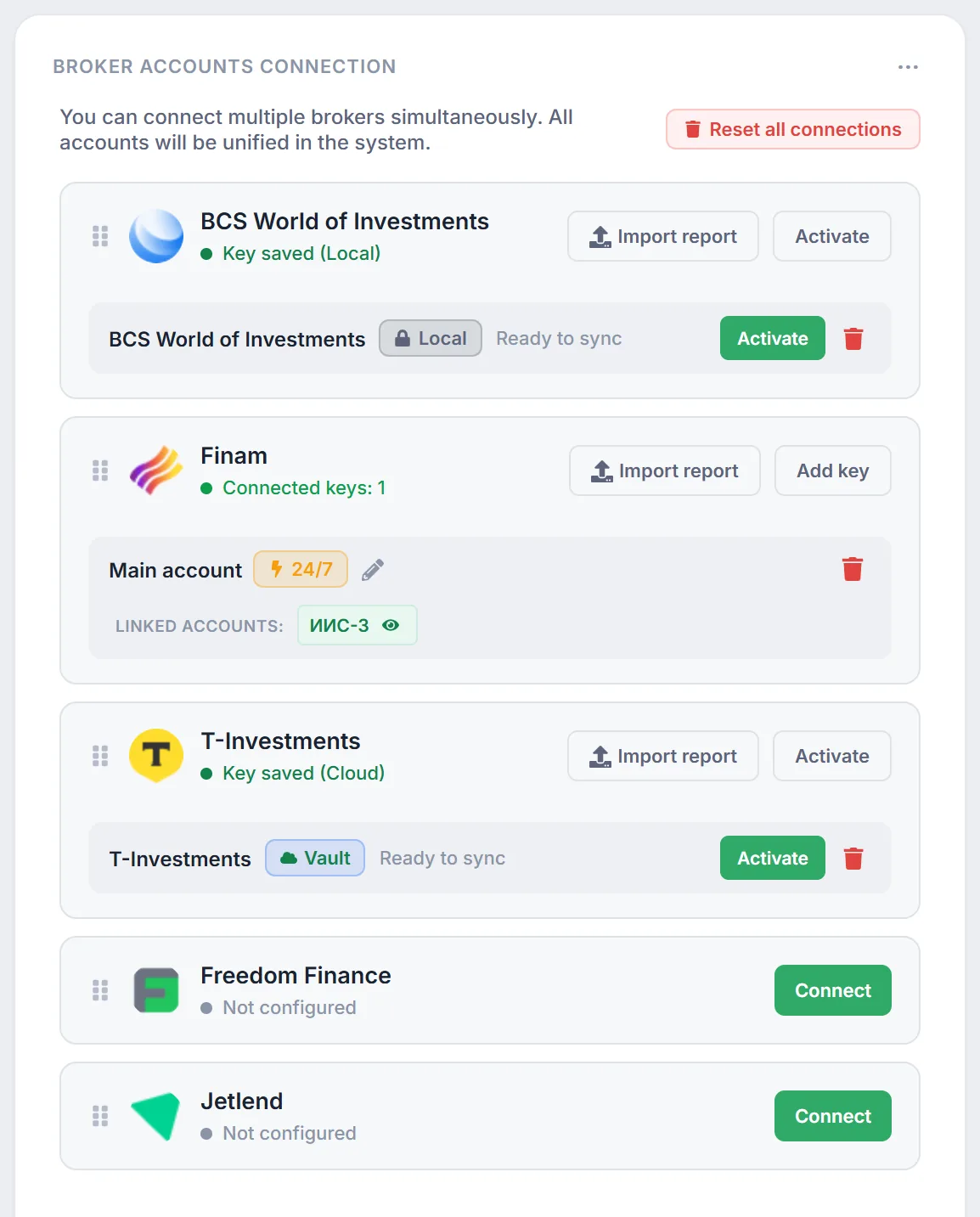
When the broker session is not active but a key is saved, the broker card shows “Key saved (Local)”, “Key saved (Cloud)” or “Key saved (24/7)”, a mode badge (“Local”, “Vault” or “24/7”) and the note “Ready to sync”.
- Click “Activate”.
- Leave the token field empty — the form will say: “Key is already saved in secure storage. Enter master password to activate or provide a new token.”
- Enter the master password and click “Connect”. Firewire decrypts the saved key and starts the sync.
On a new device you can activate keys stored in “Cloud Vault” and “24/7 Auto-sync” this way: their encrypted copy comes from your account. A “Local Only” key has to be entered again on another device.
6. If you forgot the master password
The master password cannot be recovered: it is stored neither on the server nor in the browser. The only way out is to reset it and connect your brokers again.
- Open the connection form of any broker and click “Reset master password” to the right above the password field (the “Reset all connections” button in the card header opens the same dialog).
- Confirm with “Yes, reset all keys”.
Firewire deletes all encrypted keys from the browser and from your account and ends all active broker sessions. After that you can set a new Single Master Password and reconnect your brokers — you will need their tokens or keys.
7. Caveats and limitations
- Plan. The server checks “24/7 Auto-sync” against your plan: on Free you cannot switch to it — you will see a message suggesting Starter or higher. The other two modes are available on any plan. Plans are compared on the Firewire website.
- A local key is tied to the browser. Clearing the cache or site data, or switching browsers, means entering the key again.
- The master password is not remembered. After logging out or reloading the page you will need to enter it again to activate a key.
- Read-only access. Issue broker keys without trading or withdrawal rights: Firewire does not place orders or move money.
8. Frequently Asked Questions (FAQ)
Which mode should I choose?
If you use Firewire on one computer and don't mind re-entering the key after clearing the browser — “Local Only”. If you use several devices — “Cloud Vault”. If you want coupons and trades to arrive without the app open — “24/7 Auto-sync”: in this mode the server can decrypt the key on its own.
Can a Firewire employee read my key in “Cloud Vault”?
In “Cloud Vault” the server keeps only a copy encrypted with your master password and does not know the password. But when you start a sync, the browser sends the decrypted token to the server to fetch data from the broker. That is why you should issue read-only keys.
Can I change the mode of a broker that is already connected?
Yes: open the broker form, choose another mode, enter the master password and click “Connect”. Switching to “Local Only” deletes the copy of the key from your account.
How is “Reset master password” different from “Reset all connections”?
It isn't: both buttons open the same “Reset Single Master Password” dialog. “Reset all connections” sits in the header of the “Broker Accounts Connection” card, “Reset master password” in the broker connection form. After confirmation all saved keys are deleted and all broker sessions are ended.