

Commission Statistics: How Much You Pay Your Broker
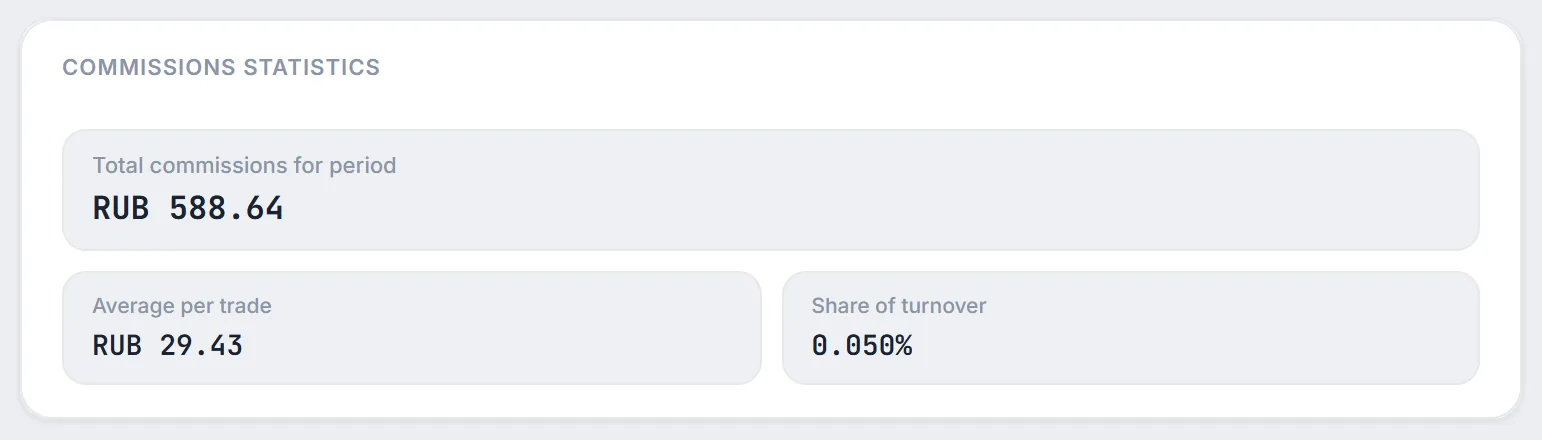
Broker and exchange fees are charged on every trade and quietly eat into your returns. The Commissions statistics widget shows three numbers: how much you have paid in fees, what an average trade costs and what share of turnover the fees represent. The same fees by month and year are in the "Fees" column of the Reports section.
- Three metrics: "Total commissions for period", "Average per trade" and "Share of turnover".
- On the Trades page the widget follows your filters: dates, buys or sells, instrument search and "Merge trades".
- On the dashboard the same widget always covers the last 30 days.
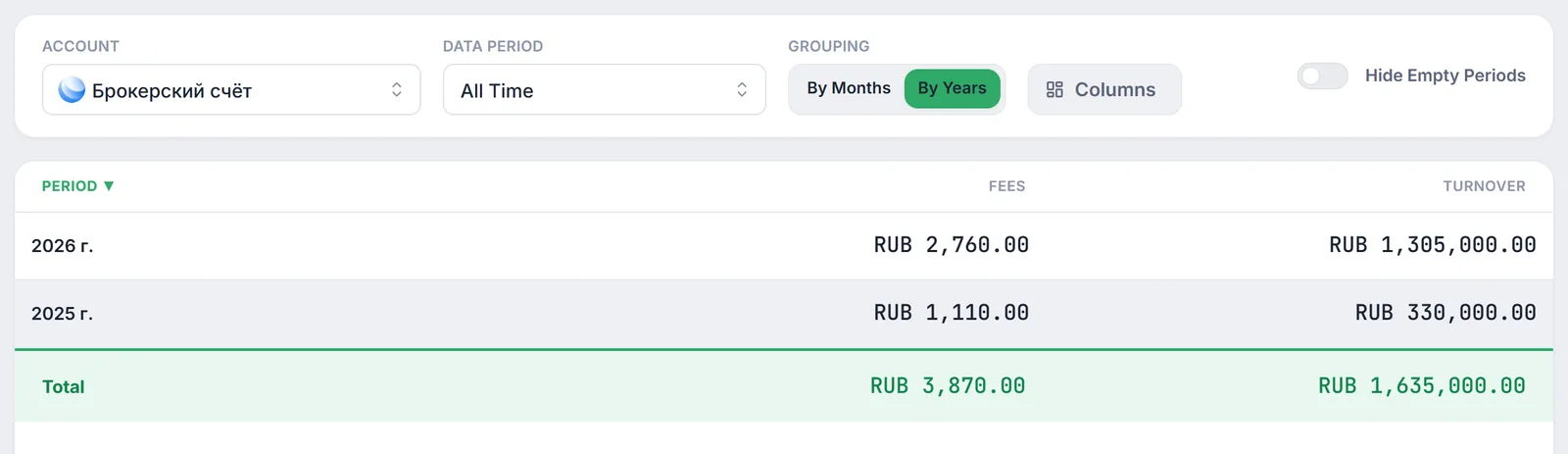
- By month and year fees are shown in the "Fees" column of Reports — with a total and CSV export.
1. Why track commissions
Fees look trivial while you trade rarely. With frequent purchases in small lots, they add up to a noticeable amount and reduce your real return. Commission statistics answer practical questions:
- how much did I pay my broker over the selected period;
- how much does one trade cost me on average;
- what percentage of my trade volume goes to fees — and is it time to review my broker plan or trade less often.
2. Where to find commission statistics
- The Trades page ("Trades" in the left menu, address
/trades) — the "Commissions statistics" block among the page widgets. If you have hidden it, bring it back with the "Configure" button. - The dashboard — the "Commissions Stats" widget can be added from the widget catalog; see the Bento Grid dashboard guide.
- The Reports section — the "Fees" column with totals for each month or year, see financial reports.
3. What the three numbers mean
Suppose the selection contains $N$ trades, $c_i$ is the commission of trade $i$ and $V_i$ is its amount (if the broker did not send the amount, price × quantity is used). Then:
- "Total commissions for period" — $C$, everything spent on fees for the selected trades.
- "Average per trade" — $\bar c$. The denominator includes every selected trade, including trades with zero commission.
- "Share of turnover" — $s$, fees as a percentage of the amount of buys and sells, shown to three decimal places.
For example, in the screenshot above, RUB 588.64 of fees over 20 trades gives an average of RUB 29.43 per trade and a 0.050% share of turnover.
4. How Trades page filters change the numbers
On the Trades page, the widget does not count your entire history — it counts exactly the trades currently selected in the filter block:
- "from" and "to" dates set the period. Without dates, all loaded trades are counted.
- "All", "Buys", "Sells" — see separately what buys and sells cost you. Deposits and withdrawals ("Deposits / Withdrawals") are not part of commission statistics.
- Instrument search — fees for a single security.
- "Merge trades" — combines trades in the same security, on the same side, at the same price on the same day. Total commissions and share of turnover stay the same, while "Average per trade" goes up because there are fewer trades. This helps when your broker splits one order into many small fills.
The rest of the trade log features are covered in trades analytics.
5. The dashboard widget: last 30 days
On the dashboard the widget has no filters of its own. It takes the selected account's trades dated within the last 30 days, which is why its first line reads "Commissions sum for 30 days". It works as an activity meter: if the number grows month after month, you are trading more often.
6. Fees by month and year in Reports
For a long history, the Reports section is more convenient: the "Fees" column sums the commissions of all trades in a month, and "By Years" mode sums them per year. The "Turnover" column sits next to it, so you can work out the fee share for any year yourself. Use the "Columns" menu to keep only these two columns and click "Export to CSV".
7. Caveats and limitations
- Fees come from your broker's data. Firewire shows the commission your broker sent via API or that is present in the uploaded statement. If the broker did not send it, the trade's commission is zero and the average is understated.
- Currency in the widget. The widget adds up fees and trade amounts without currency conversion. If you have trades in US dollars or yuan, use the ruble amounts in the "Fees" column of Reports, where foreign-currency amounts are converted at the current Central Bank rate.
- Trades only. Deposits and withdrawals, taxes and account maintenance fees are not included.
- Hidden amounts mode. When amounts are hidden in the app, the widget shows "••••" instead of money values.
8. Frequently Asked Questions (FAQ)
Why do the dashboard and the Trades page show different totals?
On the dashboard the widget always covers the last 30 days, while on the Trades page it uses your current filters. Without a date filter, the entire trade history is counted.
Why did the average commission go up after "Merge trades"?
Merging combines the fills of one order into a single trade. Total commissions stay the same, but there are fewer trades, so each one carries more.
Are commissions taken into account in returns?
Yes. Commissions reduce the result in return calculations, and the PnL decomposition shows them as a separate component.
How do I export a year of fees?
Open Reports, choose "By Years", keep only "Fees" and "Turnover" in the "Columns" menu and click "Export to CSV". To export every trade with its commission, use the "Export CSV" button on the Trades page.