

Interactive Tours of the Firewire Interface
Firewire has many screens and widgets, and you don't have to learn them by trial and error. Step-by-step tours highlight one element after another and explain what it shows. The overview tour starts on its own at first sign-in, and a tour of any major screen opens with the “?” button next to its title.
- Overview tour starts by itself after the first sign-in: navigation, control bar, tools and account.
- Screen tours via the “?” button next to the title: dashboard, positions, yields, trades, payout calendar, calculators, Copilot, settings and more.
- Controls: “Next”, “Back”, “Skip tour”, chapter navigation, ← → keys and Esc.
- Voice-over: the speaker button reads the step aloud with the browser's voice.
- Progress is stored in the browser: on another device the overview tour appears again.
1. How a tour works
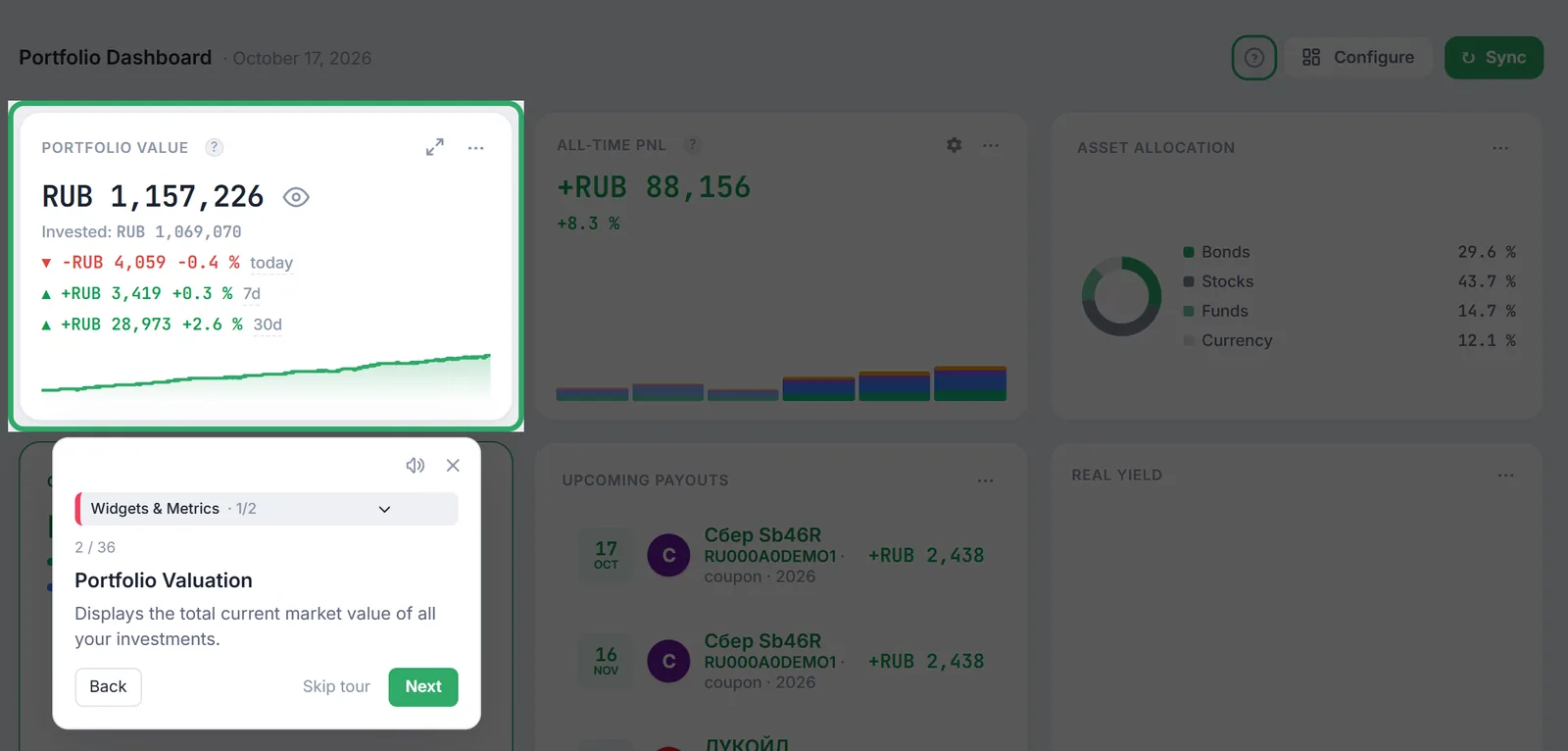
A tour dims the screen and outlines one element: a widget, a button or a filter. A step card appears next to it:
- at the top, a drop-down list of chapters (for example, “Widgets & Metrics · 1/2”) that lets you jump straight to the part you need;
- the step number and total number of steps, for example “2 / 36”;
- a title and a short explanation of what the highlighted element shows;
- “Back”, “Skip tour” and “Next” buttons (“Finish” on the last step), plus a close cross and a voice-over button in the corner.
If the element of a step is currently hidden (say, a widget was removed from the dashboard), the tour simply skips that step, so the number of steps may differ between users.
2. Overview tour after the first sign-in
Right after your first sign-in Firewire starts an overview tour of the whole app. It goes through four chapters: “Left Navigation”, “Control Bar”, “Tools & Support” and “User Account”. Finish it or click “Skip tour”: either way it will not appear again in this browser.
A separate tour also starts on its own the first time you open the public page builder: it has many settings, and the hints help you assemble the page without mistakes (more about public pages in the guide on sharing).
3. Screen tours: the “?” button
Next to the title of most screens there is a round button with a question mark. Hover over it and the tooltip names the tour, for example “Dashboard Tour”. Clicking it starts the tour from the first step, even if you have taken it before.
Tours are available on these screens:
| Group | Screens |
|---|---|
| Portfolio | Dashboard, Positions, bond page, Yields, Reports, Payout Calendar, Trades |
| Calculators | Financial Freedom, Compound Interest, Capital Forecast (Monte Carlo simulation), IIS Tax Calculator, mortgage calculator |
| AI | AI Copilot chat; the MCP & AI Agents tab in Settings |
| Account and service | Settings, Tariffs & Subscription, Notifications Center, the support panel (request, feedback, idea), the public page builder, the sign-in page |
The most detailed tour covers the dashboard: up to 36 steps about widgets, metrics and page setup (about the dashboard builder itself, see the Bento Grid guide).
4. Keys and voice-over
- → (right arrow): next step;
- ← (left arrow): previous step;
- Esc: skip the tour.
The keys do not interfere with typing: when the cursor is in an input field, the arrows work as usual.
The speaker button (“Enable voice”) reads the step title and text aloud. It uses your browser's speech synthesis, so voice quality and availability depend on the browser and operating system; if no suitable voice is found, the button reports that voice is unavailable.
5. Where progress is stored
The mark that a tour was finished or skipped is stored in the browser, not in your profile. Therefore:
- on another computer, phone or browser the overview tour appears again after sign-in;
- after clearing site data Firewire also treats the tours as not taken;
- screen tours can always be restarted with the “?” button; the mark does not matter for them.
There is no separate button to replay the overview tour: it is shown once in each browser.
6. Frequently Asked Questions (FAQ)
I closed a tour by accident. How do I get it back?
Click the “?” button next to the screen title and the tour starts from the first step. The chapters at the top of the card let you jump straight to the part you need.
Why does my tour have fewer steps than a colleague's?
The tour skips steps about elements that are not on screen right now, for example a widget removed from the dashboard or a block that is not currently shown.
Why did the overview tour appear again?
The completion mark is stored in the browser. In a new browser, on another device or after clearing site data the tour appears again; click “Skip tour” or press Esc.
Voice-over is silent. What should I do?
Voice-over uses the voices of your browser and operating system. Make sure a voice for the interface language is installed, or open Firewire in another browser.